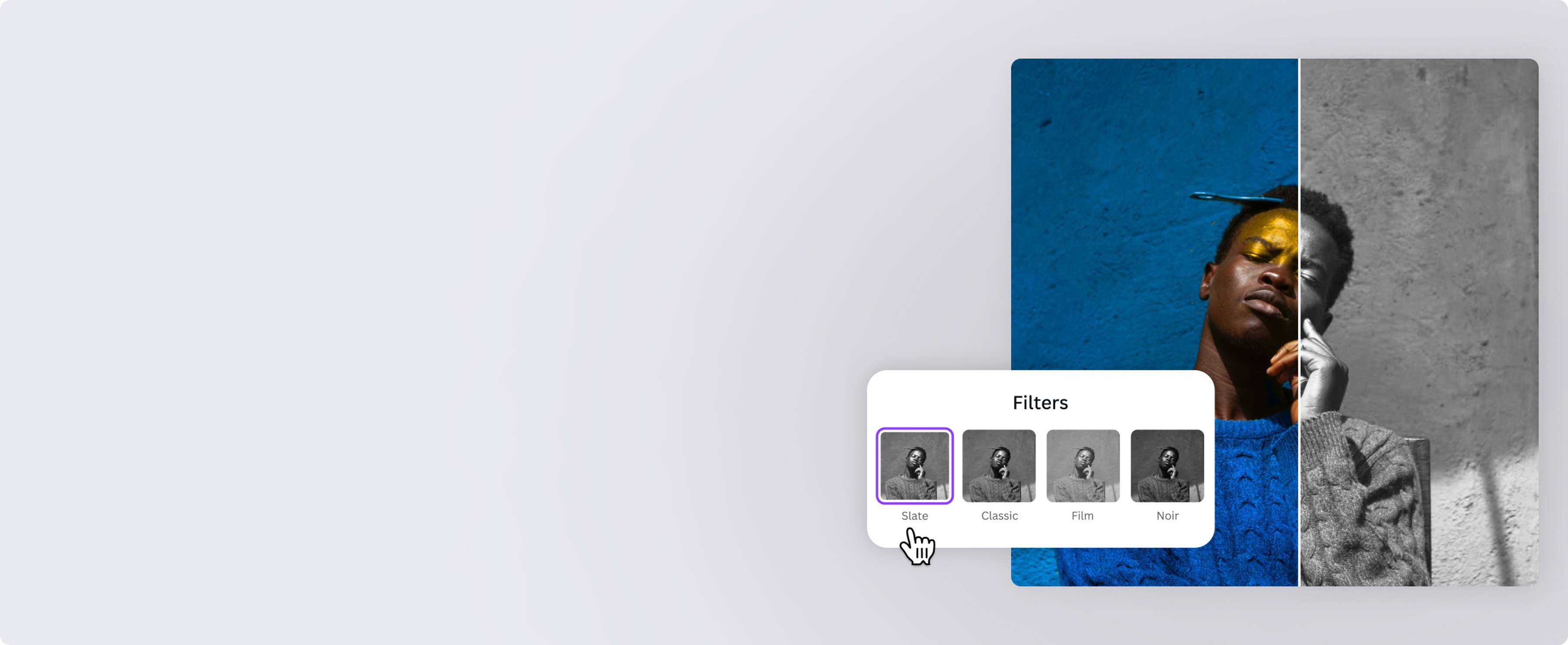
Create depth and drama with a grayscale image
Turn a simple colored picture into a dramatic image by converting it to grayscale on Canva. With our photo editor, you can instantly set a timeless, somber, or nostalgic mood to your photo.
or drop it here
Learn about Canva’s upload formats and requirements. See how we use your content in our Privacy Policy.
Breathe new life into any picture
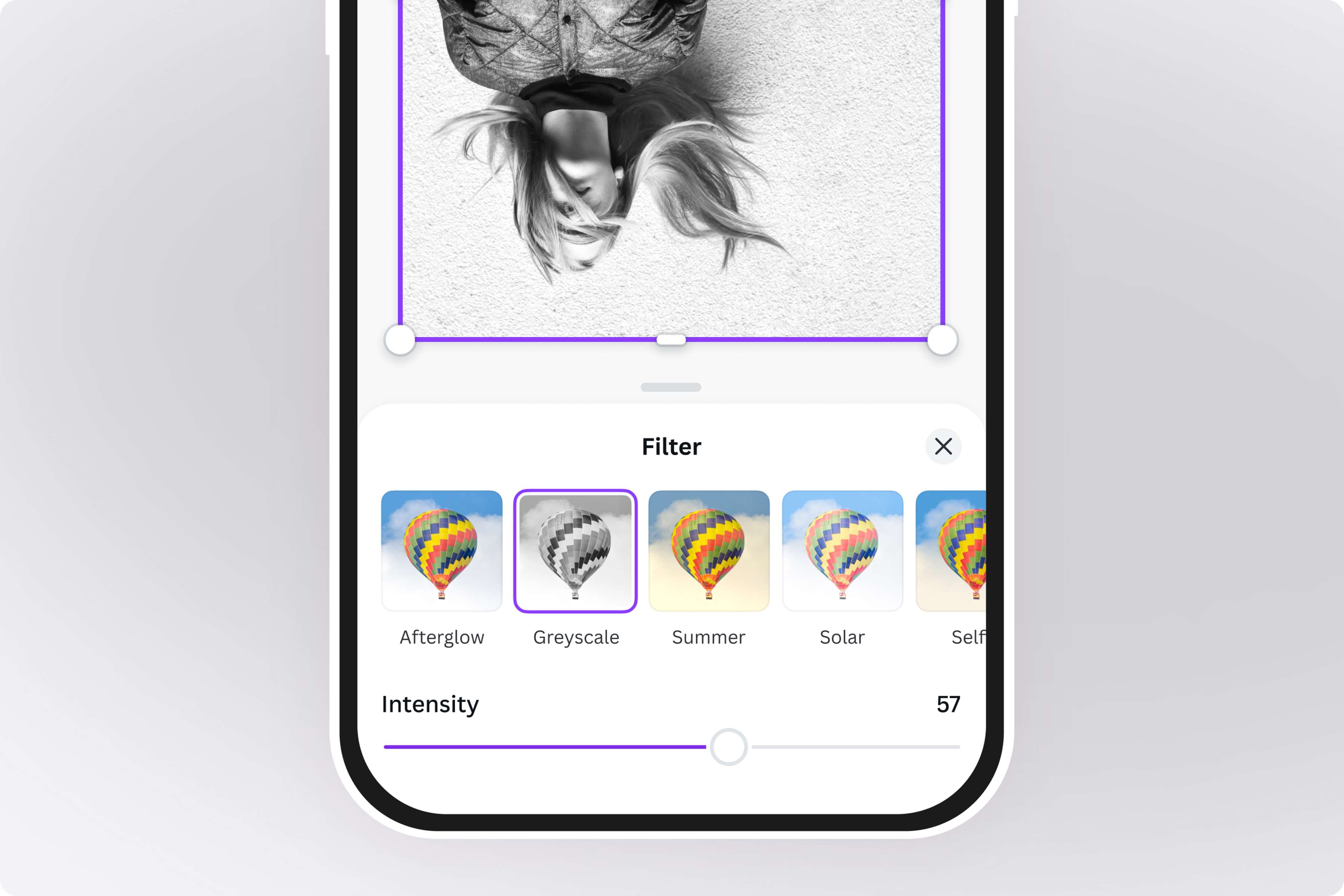
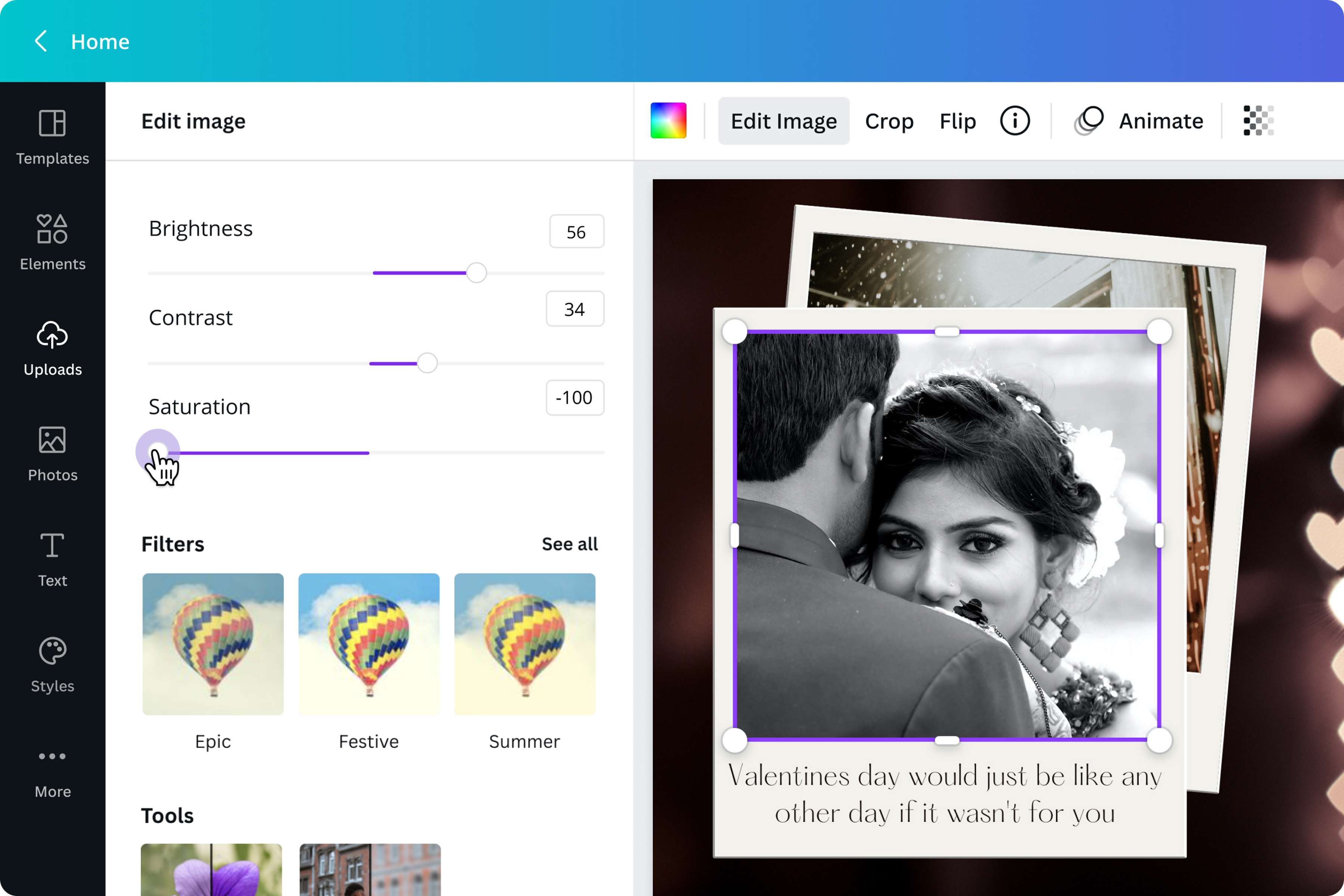
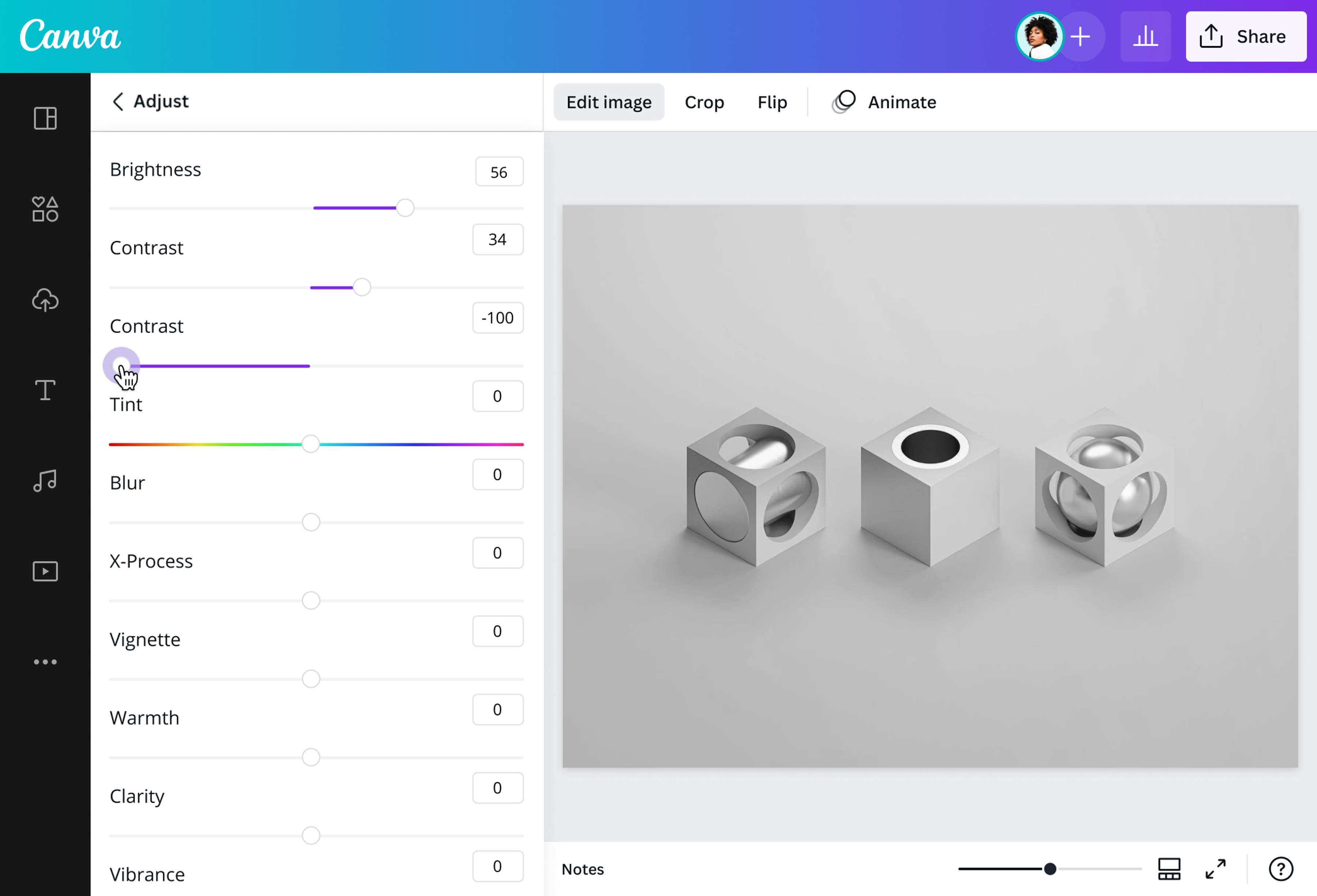
Transform your pictures into stunning grayscale images for a plethora of needs. Whether it’s for the monochrome aesthetic, business card mockups or for practical design purposes, a grayscale photo can do wonders for your projects. Use our preset filters to instantly convert an image into grayscale. Or play around with dedicated controls to adjust your photo based on brightness, contrast, saturation, and other toggles.
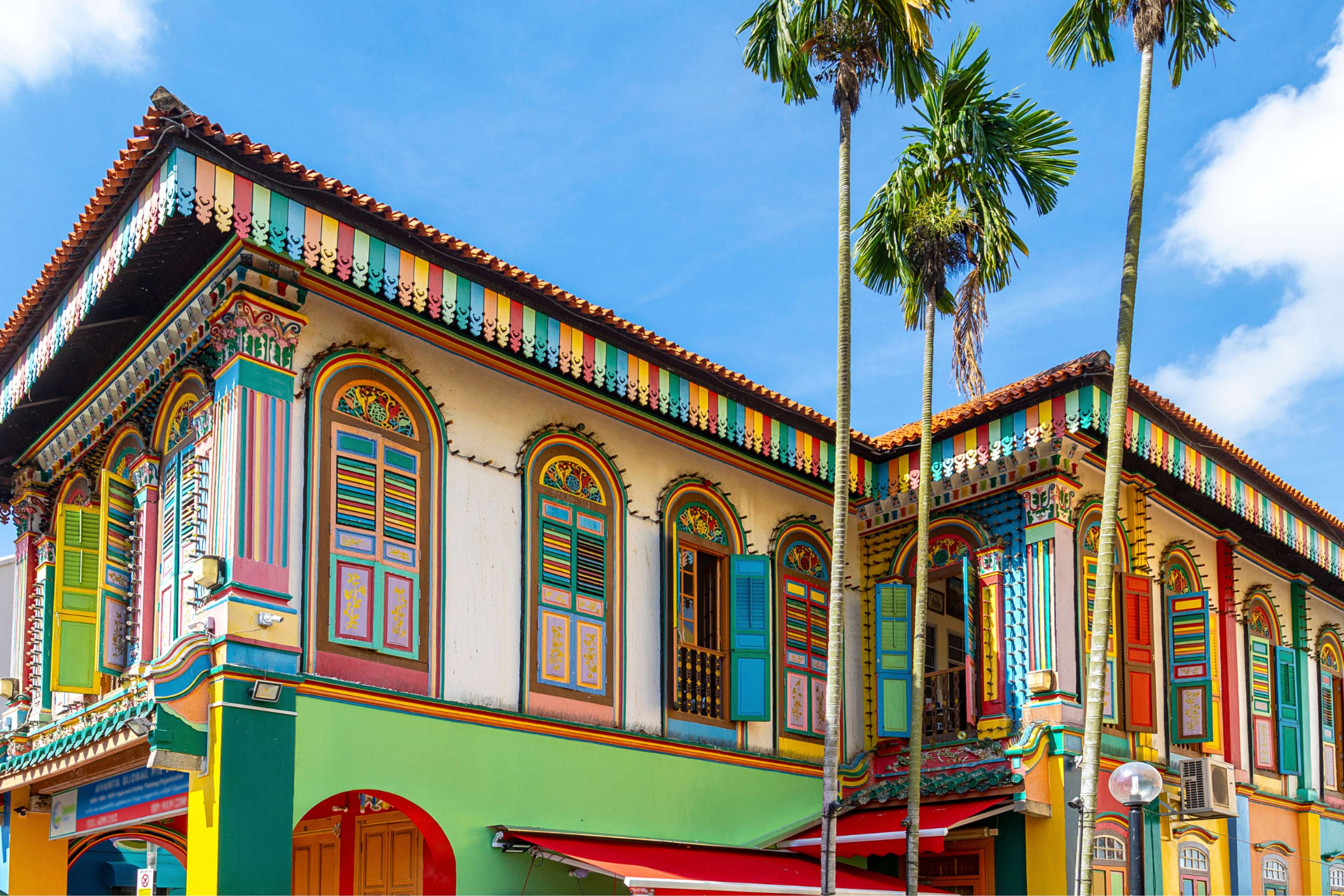
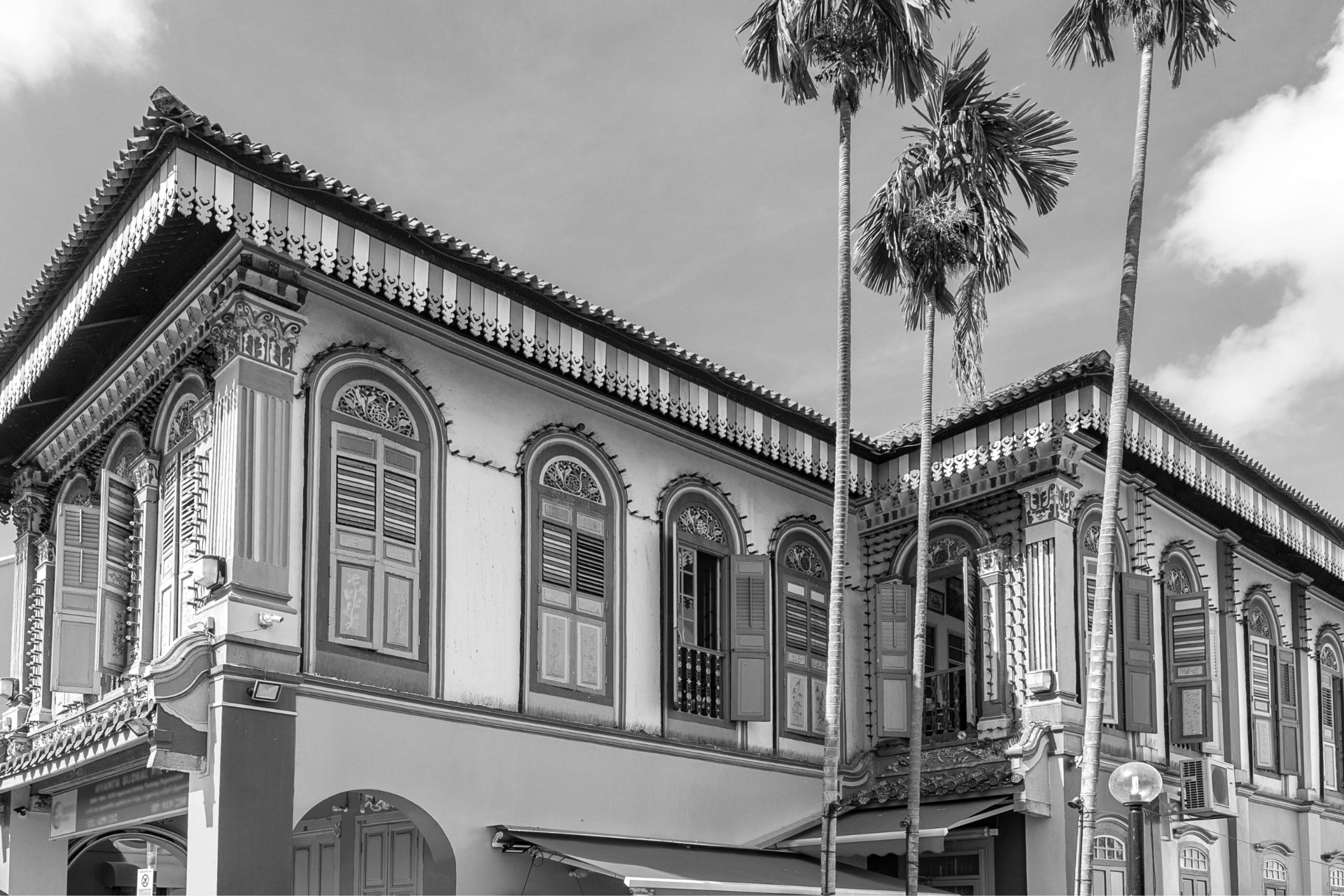
Photo editing made easy
From individual content creators to established business brands, practically anyone can use and benefit from Canva’s grayscale image converter, image translator or colorize black and white. No design background is necessary to navigate our intuitive photo editor. Simply choose a stock image from our extensive library or upload your own, and have fun turning your image into grayscale using our drag-and-drop tools and intuitive interface. Save time, effort, and resources with Canva.
Take your projects further
Use your grayscale images for personal endeavors or professional campaigns. Upload a black and white profile picture to match your online portfolio and exude elegance. Choose a grayscale photo or colorize black and white as the focal point of your next promotional poster. Visualise your design on poster mockups before printing out a draft of your company flyer with a grayscale image. More than just editing photos, Canva lets you transfer these converted files onto other projects and continue designing without disrupting your workflow.
How to grayscale an image
Launch Canva
Head to Canva on your browser, or download the free mobile app on your phone or tablet. Then, open the grayscale image converter from the photo editor.Upload your picture
Navigate the Uploads tab and select your image. Or, simply drag and drop it directly to the layout. Click or tap on the photo you want to grayscale. The selected image is marked by a purple outline.Convert to grayscale
On the menu bar, click on the Edit image button. Explore the Filters tab and click on Greyscale or Street for a quick, one-click conversion. Use the slider to modify its intensity. For a more customized image filter grayscale, experiment with the Adjust toggles to tweak its brightness, tint, vibrance, and more.Add finishing touches
Crop(opens in a new tab or window), flip(opens in a new tab or window), blur(opens in a new tab or window), or rotate(opens in a new tab or window) your image to enhance it further. Or try adding supporting text(opens in a new tab or window), frames, and icons from our massive media library. By signing up for a Canva Pro account, you can even remove the background(opens in a new tab or window) with just one click.Save and use your grayscale image
Download your grayscale photo in file formats such as PNG and JPG. Use it for your design projects—from marketing posters and company brochures, to social media posts and online branding.
Frequently asked questions
- None. In most cases, the terms are interchangeable. Grayscale is a more technically accurate term, as most black and white photos have shades of gray in them. A true black and white photo looks flat and one-dimensional compared to a true grayscale image, which retains varying shades that create depth and perspective.