- UML Use Case Diagram

Align your team with a UML use case diagram
UML use case diagram maker features
You don’t need complex software to create a UML use case diagram. Use Canva to map your system — add users, map interactions, define scope, and move things around until it makes sense. Whether you’re in a quick planning session or presenting to stakeholders, your diagram stays clean and readable.
More than 20 professional types of graphs to choose from
Professionally designed templates to fast-track your workflow
Data visualization made easy – no complicated software to learn
Publish, share or download your high-resolution graph
Embed your UML use case diagram in presentations, reports, and more with no fuss
Easy drag-and-drop tools, made with the non-designer in mind
How to make a UML diagram


What is a UML use case diagram?
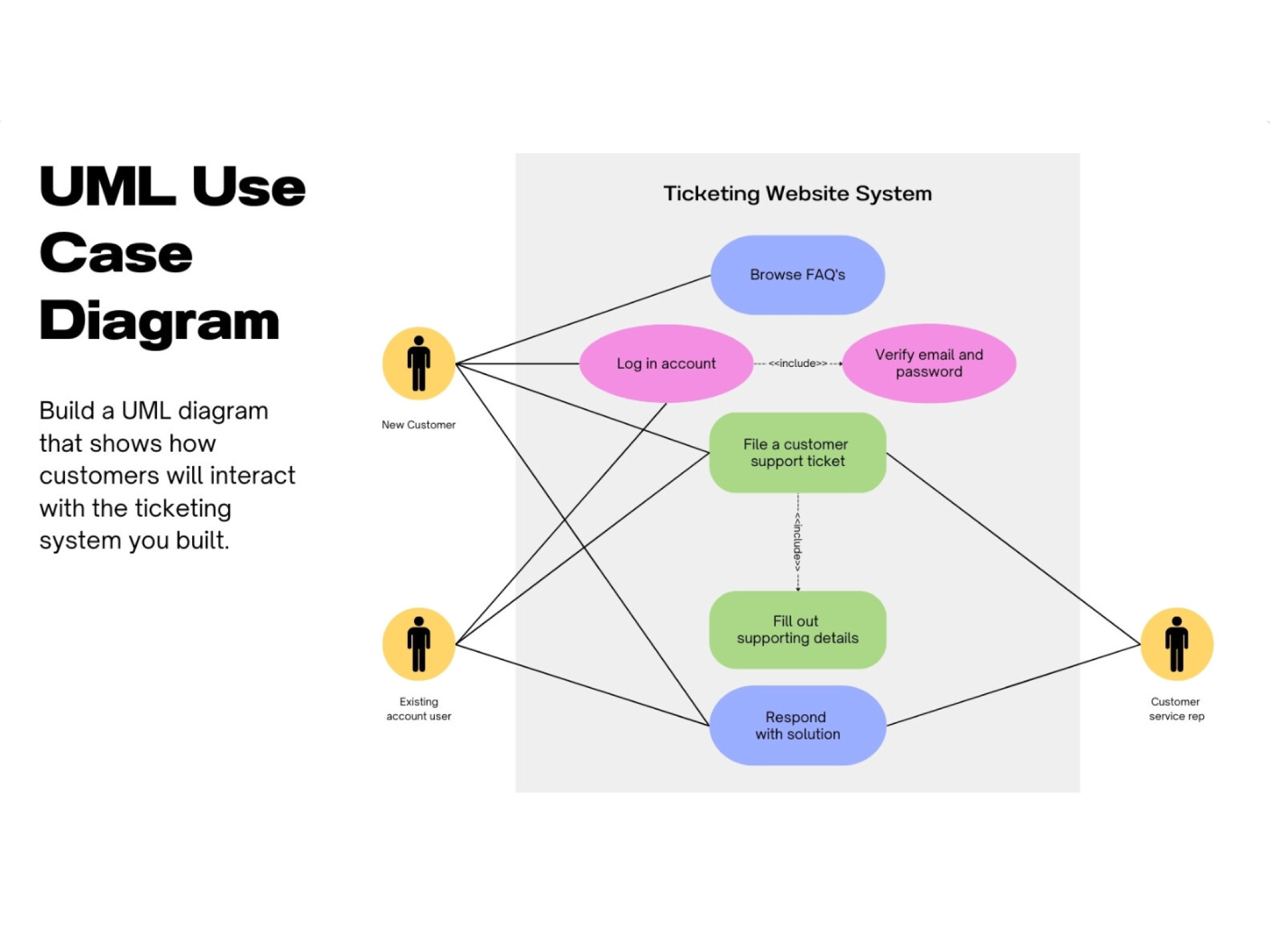
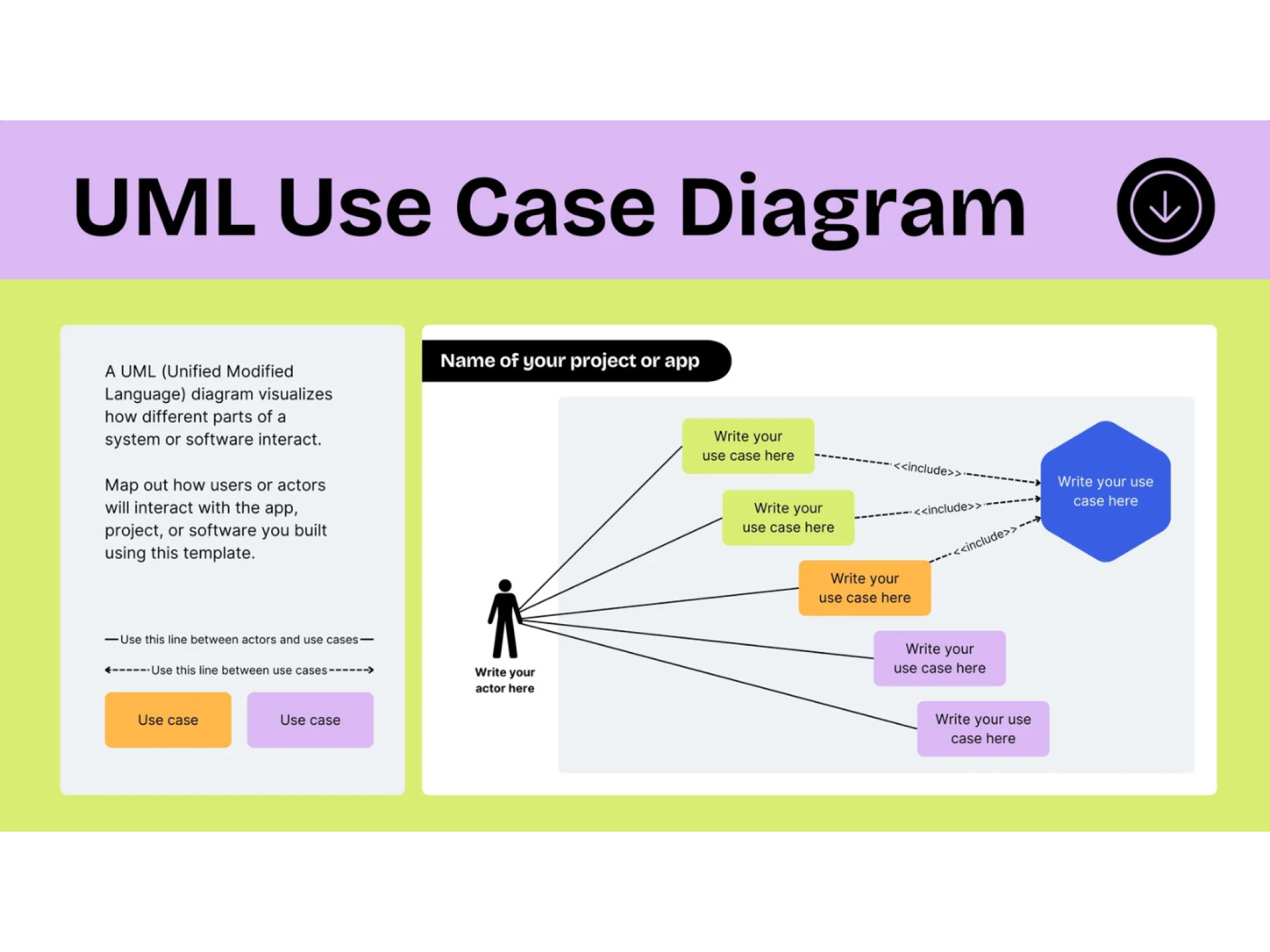
A UML use case diagram is a visual summary of how users interact with a system. It’s a high-level view of what a system does, instead of how it does it. You’ll usually spot stick figures (actors), ovals (use cases), and a box around the entire graph (the system boundary). Together, these show user goals, system responses, and how everything connects to each other.
Canva's intuitive editor makes it simple to generate clear use case diagrams through pre-made professional templates. It’s perfect for quickly visualizing system interactions in a clear, presentation-ready format.
Why use a UML use case diagram?

If you’re trying to create new software or a product, jumping straight into build mode can complicate things. A use case diagram slows things down just enough to get clarity first:
- Who’s using the system?
- What do they need?
- Where does responsibility start and stop?
This is especially helpful when you’re explaining ideas to people outside the technical team, defining scope early, or sorting through a long list of requirements. You start to see gaps, overlaps, and missed steps. Once everyone sees the same picture, decisions get easier.
Components of a UML use case diagram

Actors

Use cases

System boundaries

Relationships
Map system interactions the simple way

Keep your UML use case diagram light with Canva. Drag and drop shapes from the elements library, connect them with smart connectors that stay in place, and simply rearrange as needed. Plus, with built-in AI tools like Magic Write(opens in a new tab or window), you can refine your diagram even further — perfect for early planning, quick workshops, or when you need to get an idea out of your head and onto the page.
Get everyone on the same page faster

Say you’re building an e-commerce system – instead of explaining in a long document how customers browse products, add items to cart, and check out, turn it into a diagram so everyone sees the entire flow at a glance. You can walk stakeholders through it, leave comments directly on the canvas, and edit things in real time.
Start with templates, not a blank page

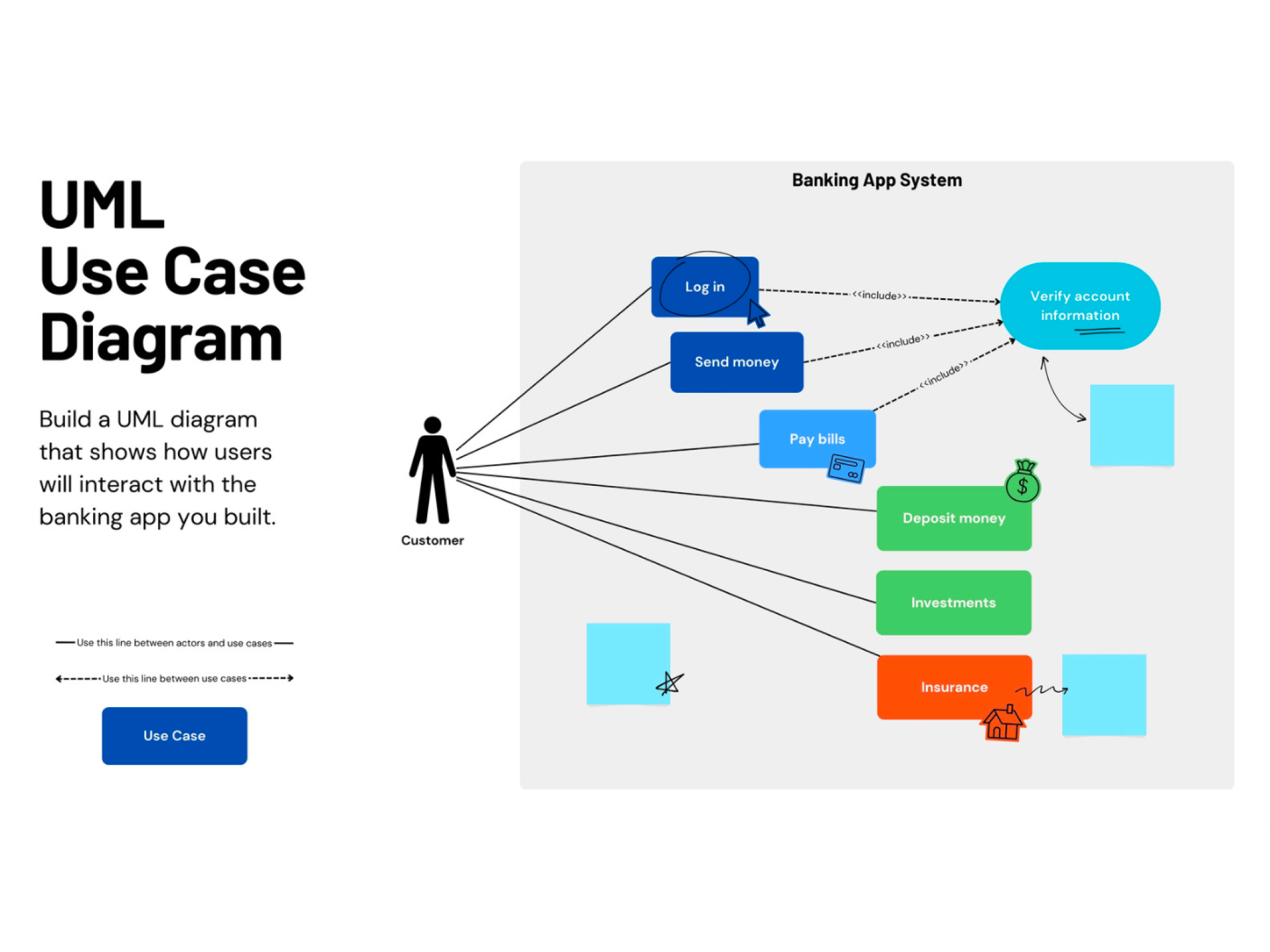
Building a diagram from scratch can consume crucial time and energy. Templates can help avoid that by giving you a ready-made starting point. Find designs for an online shopping system, a banking app, or a basic service workflow. From there, you can customize layouts, update labels, and apply your Brand Kit (Pro)(opens in a new tab or window) to keep everything consistent.
Scale your ideas on an infinite canvas

Some systems are simple, others keep growing. With an infinite whiteboard canvas, you don’t have to choose. From a single interaction like a user logging in, you can expand your diagram to include admin actions, third-party integrations, or additional services — no limits. And no matter how big or complex your chart gets, it stays in one shared space.
UML use case diagram templates


Anon
Frequently Asked Questions
- Identify the type of system appropriate for the use case description, then figure out who’s involved in it and what goals they’re trying to achieve. Those involved will be your actors, and their goals will be your use cases. Connect each actor to their corresponding use cases, then put a system boundary around the use cases to separate the internal elements from the external ones.
To identify actors, focus on roles or functions. They can be users, external services, or even other systems. Keep it broad enough to stay useful, but specific enough to make sense. Actors should represent anything that interacts with the system you’re building.
For example, in a banking system, the customer is an actor who logs in to check their balance and transfer money, while the payment gateway is another actor that processes the transaction in the background. In a delivery system, the courier is an actor who receives delivery requests and updates delivery status, as is the admin who manages orders and users.
An “include” relationship means one step always happens as part of another step. It’s not optional — it’s something that must be done every time.
For example, in a banking app, a “Withdraw money” step may include “Verify Identity” after it, because confirming who the user is may be necessary before allowing them to take money out. The same idea can apply in healthcare systems where checking a patient’s appointment details might always be needed before accessing their record.
An “extend” relationship means an extra step that only happens sometimes. The main process can still run without it, and the extended behavior only happens under certain conditions.
For example, “Print receipt” extends “Withdraw Money” because the user may choose to print a receipt or not. Another example is “Send security alert” extending “Login”, which only happens if unusual activity is detected.
A use case diagram is the overall view of a system. It shows the main parts only, like who’s involved in a system and what they’re trying to achieve. A flowchart can be more intensive and detailed. It breaks the process down into specific steps, including decisions, conditions, and the exact order of actions.
For example, in a food delivery app, a use case diagram shows the main actors and what they do: the customer (actor) places an order (use case), the restaurant (actor) prepares the food (use case), and the delivery rider (actor) completes the delivery (use case).
A flowchart, on the other hand, can break down one of these specific processes into detailed steps. So, for placing an order, that can be selecting items, adding them to cart, entering delivery details, processing payment, and so on.
A system boundary, often represented by a box, shows what’s inside (use cases) and what’s outside (actors) a certain system. It keeps the scope clear, making it easier to understand what the system actually does.
In a university enrollment system, you would include actions like enrolling in courses, accessing learning materials, viewing class schedules, and paying tuition fees within the boundary because those are the things that actors (students or lecturers) would do.