Learn about Canva's upload formats and requirements. See how we use your content in our Privacy Policy.
Protect data and preserve information on documents and image-heavy designs by turning them into PDF files. Convert PNG to PDF with Canva’s free online PNG to PDF converter.
Try these document editing tools
Edit, convert, translate PDFs and more. All the PDF editing tools you need!
With many file editors, you need to download and use a separate program to convert one format to another. But with Canva, you have access to both a converter and a file editor in one.
That means, whether you design on Canva or upload your own images, you can turn your photos into PDFs in a single click for easy sharing and storing.
On Canva, you can easily collaborate with your team to improve your design. Get them more involved and engaged by assigning tasks, encouraging them to leave comments on your work, and making the necessary changes on your favorite device.
PDFs for any language or platform
Take your docs to the next level by leveraging any or all of our Canva Pro and AI tools:
Magic Switch (Pro): Translate and reformat your decks to any kind of doc and for any kind of audience in a snap. Change your design’s dimensions or language, with over 100 languages supported.
Magic Write (Pro): Prompt AI to generate text in your tone or write an entire document for you from scratch.
How to convert PNG to PDF
Frequently Asked Questions
The main differences between the three file formats are related to the data, the quality of the images, and the file size.
JPG: JPGs have one of the smallest file sizes, which makes them perfect for uploading or attaching. However, because the image has to be compressed for a smaller file size, it loses some data and quality from the original image.
PNG: PNGs are known for maintaining the quality of the original image, icon, or graphic down to its smallest details. Their main disadvantage is that they often have a larger file size.
PDF: When talking about image formats, PDFs aren’t as popular nor ideal for icons, logos, and simple graphics. That said, they are the perfect format for sharing screenshots or documents, as they can preserve the look and layout of the original text and images.
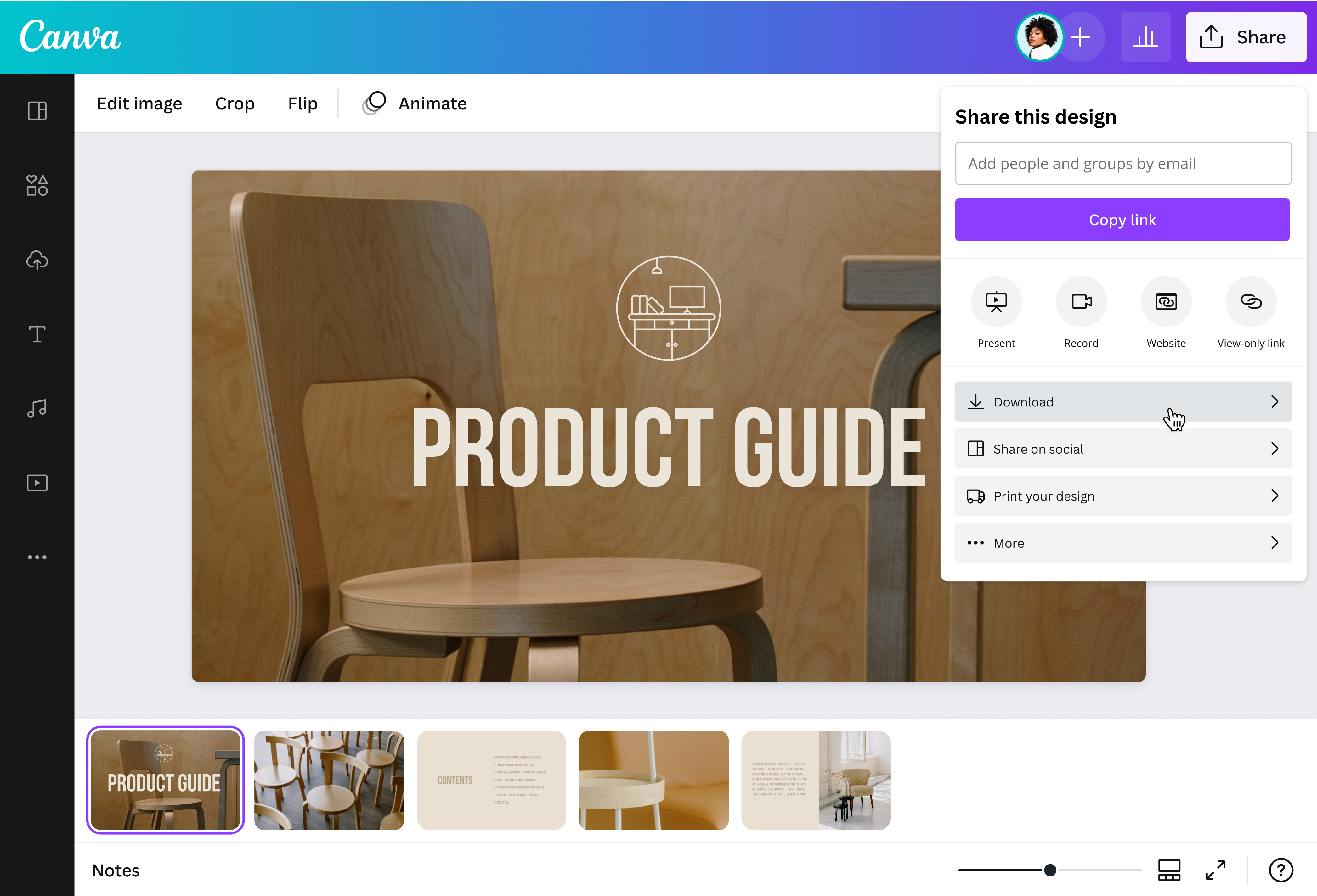
It’s as simple as:
Uploading all of your PNG files
Dragging and dropping them onto your dashboard so they all fit on a page
Downloading your work as a PDF file
Yes, our PNG to PDF converter is safe and secure. All of your private designs can only be accessed by logging into your account unless you make those designs shareable. For more information, here’s an overview of our Security Features.
@canva is such a life changing tool! One of the most well thought out websites I've ever seen. I use it to showcase my work with the community and it never ceases to amaze me! Kudos for all the love and effort you've put into its development! #canvadesigns
@mahimagirdhar
@canva is an incredible app for designing pretty much anything you need! A huge selection of templates, fonts and colours; endless choices at the tip of your fingers; easy editing and sending/sharing. Best app I’ve used for a long time. If you haven’t tried it... try it!
@SpotOnDomain
Omg I love you guys! Thanks for making it so easy for me to use your templates. There’s so many selections and your site and app are very easy to use and navigate !!! 🥇💓💓💓💓💓💓
@curlyfrosista
I don’t know where I was without @canva They have absolutely great graphics for any social media platform. Whether it be a YouTube thumbnail, an Instagram Post or whatever you want to create. Let @canva make the design process easier for you.
@IGchef_andrewb
@canva is simply outstanding as a tool to create designs. Using Canva is such a seamless experience that once you sit down to design, you don't feel like getting up. It's addictive and useful. Keep going Canva. I use Canva every day – I couldn’t do my job without it. The ability to style logos is my favorite