- The best CapCut alternatives for video editing in 2025
The best CapCut alternatives for video editing in 2025

CapCut has been a go-to video editor for creators everywhere, especially for short-form content for platforms like TikTok(opens in a new tab or window) and Instagram(opens in a new tab or window). As a free video editing app, it rose in popularity thanks to its powerful features and beginner-friendly interface.
However, CapCut has recently (and quietly) rolled out a major update to its Terms of Service(opens in a new tab or window), which raises some serious questions. If you’ve been using CapCut for personal or professional content, here’s what you need to know about their new terms and what they actually mean for you.
As of June 2025, you still own your content when you use CapCut, but…
1. CapCut claims broad rights over your content.
When you upload content to CapCut, you’re granting them a worldwide, royalty-free, sublicensable, and transferable license to use it however they see fit. That means your videos and even your name, voice, or image can be used in ways you might not expect.
CapCut’s updated Terms of Service allow them to:
- Use, modify, and distribute your media
- Create and publish derivative works
- Monetize your content without notifying or paying you
- Sublicense your content to third parties (like ad platforms)
If you’re working with clients, producing branded content, or just want to retain control over how your videos are used, this should raise a red flag. While CapCut makes editing easy, these terms make it hard to know where your content could end up or who might be profiting from it.
2. CapCut can remove your content without telling you.
CapCut can remove, block, or delete any of your content at any time without notice, explanation, or liability. If your video is flagged or deemed to violate their guidelines (even mistakenly), CapCut can take it down instantly.
They don’t have to tell you it’s been removed or explain why. Whether it’s a misunderstanding, a false report, or a policy shift, your content can disappear from the platform with no recourse on your end.
3. You’re fully responsible for anything you upload.
CapCut’s terms mean you’re solely responsible for the content you upload, including any legal trouble that might come with it. If your video includes copyrighted music, logos, or clips, and CapCut uses that content in any way, you’re the one who could be held liable and not them.
In short, CapCut assumes no responsibility for what you upload, and you agree to indemnify them (that is, cover their legal costs) if your content causes any issues.
Table of Contents
The best online video editing apps like CapCut
Thankfully, there are plenty of apps similar to CapCut but with better safeguards for your content. For example, Canva does not claim ownership of your work. We don’t repurpose, license, or use it without your permission. Our platform is built with creators at its heart. If you create something in Canva, it’s yours. Not ours and not anyone else’s.
If you've been using CapCut, now’s the time to explore alternatives. Whether you're after similar features, more powerful tools, or a platform that puts creator rights and privacy first, we’ve compiled a list of the best CapCut alternatives, which you can compare below.
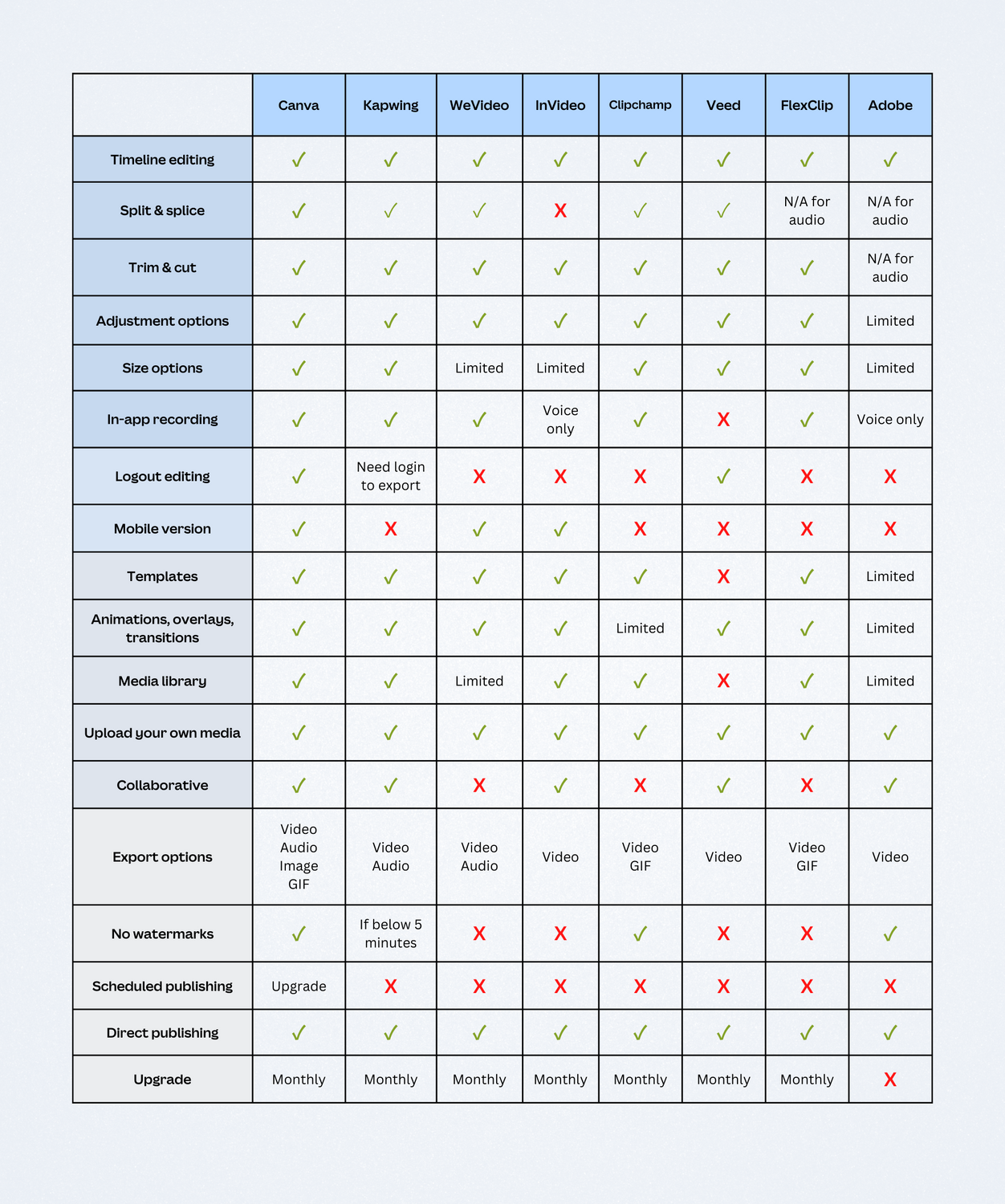
Feature comparison chart of video editing apps like CapCut
1. Canva
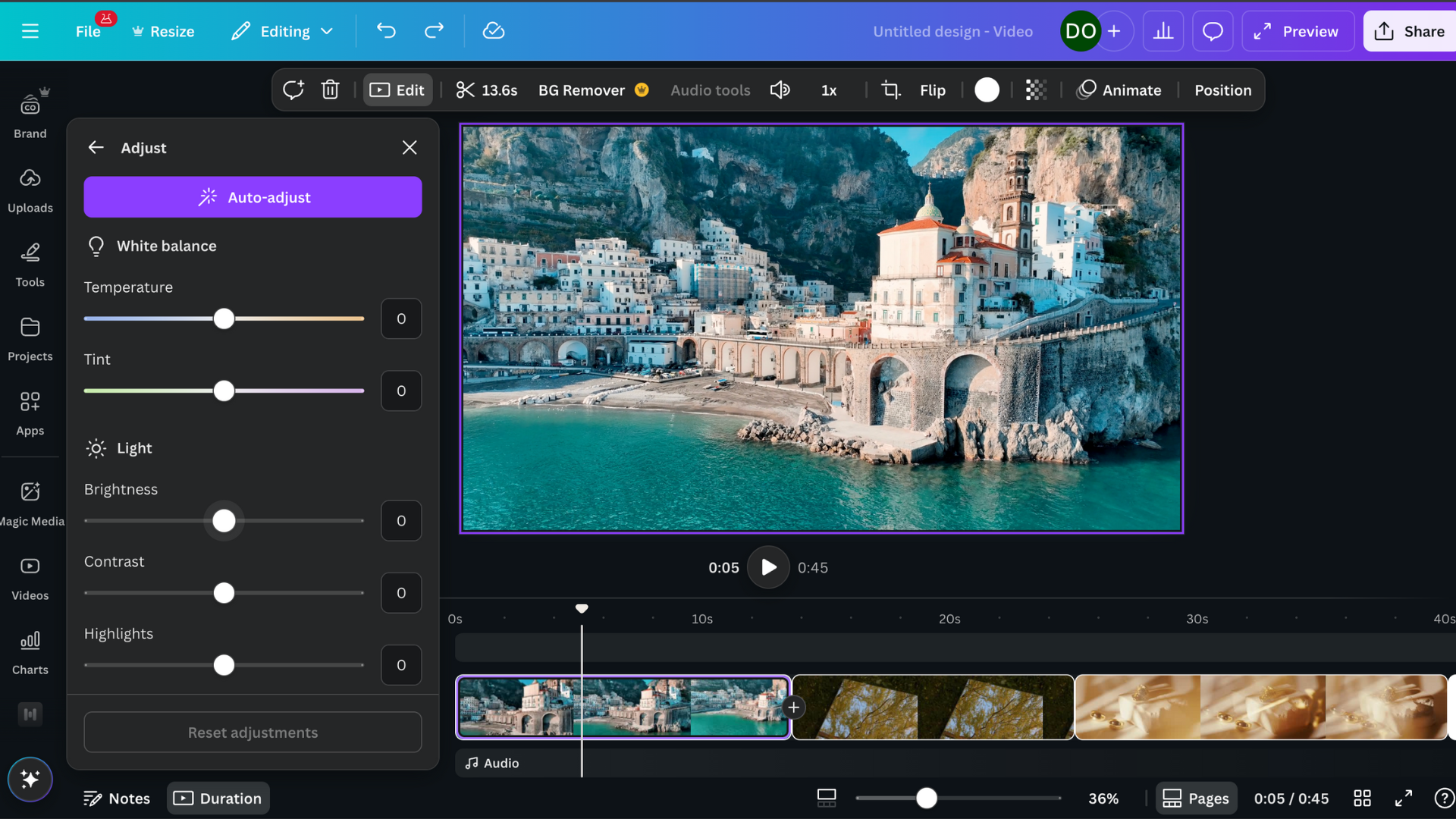
Canva video editor
Best for: Creators who want an all-in-one video editor and design tool
Key features: Beginner-friendly interface, powerful AI tools, rich stock library, free cloud storage
Pricing: Free, $15/month or $120/year per person for Canva Pro, $10/month or $100/year per person for Canva Business, and custom pricing available for Canva Enterprise
Editing features
Canva’s online video editor(opens in a new tab or window) is designed for all types of creators. It offers intuitive tools, cloud-based storage, and AI features that simplify the editing process. Whether you’re working solo or with a team, it’s accessible even for those new to video editing.
Basic editing features include cutting, trimming(opens in a new tab or window), and splitting clips. You can also add motion to static images or video elements using built-in animation effects. Captions(opens in a new tab or window) are auto-generated and fully editable, making them ideal for accessibility or branding.
The video background remover(opens in a new tab or window) works with one click to isolate subjects or clean up busy footage—no green screen needed. Magic Media™(opens in a new tab or window) can generate a whole video from a short text prompt, which is especially helpful for creators without original footage.
Other useful features include the Highlights tool, which finds and trims the best moments from your video, saving you time on manual editing. With Magic Design™ for Video(opens in a new tab or window), you can upload clips, describe your vision, and generate a polished edit with transitions and synced music.
Templates and media library
Canva offers video templates(opens in a new tab or window) for different formats, including landscape, square, and portrait layouts. You’ll find layouts that suit any platform or content type, from YouTube videos and Instagram Stories to TikTok reels. If you change your mind about the layout midway through, Magic Switch (Pro)(opens in a new tab or window) lets you easily convert your video to a different aspect ratio without starting over.
Video templates come in various styles and themes, so you’re sure to find one that fits your tone: formal, playful, or somewhere in between. Most templates are free and fully customizable, so you can swap in your own clips, images, and text to suit your project.
In addition to uploading your own media, Canva has a rich content library with stock videos, sound effects(opens in a new tab or window), and images. Plus, you can access Artlist’s exclusive collection of over 100,000 cinematic video clips and 15,000 royalty-free music tracks exclusive to Canva.
Exporting
Canva lets you export high-quality videos, with 1080p MP4 as the standard format on Pro. You can also save your project as an MP3, JPG, PNG, or GIF. Free users are limited to 480p exports and may see watermarks on premium elements. When you're ready to share, you can publish directly to platforms like Instagram, Facebook, and more straight from the editor.
Your projects are also saved automatically in the cloud. Free users get 5GB of storage, while Pro users have more. You can edit on any device, including mobile and desktop, and collaborate with others in real time. If you want to schedule your video to go live later, you can choose a publish date and time with Content Calendar (Pro)(opens in a new tab or window).
One reason Canva is better than CapCut is how it handles content ownership. Unlike CapCut, Canva gives you full control over your videos. Anything you create and export is yours, and Canva does not license, repurpose, or claim rights to your work. Read more about content ownership on Canva(opens in a new tab or window).
2. Kapwing

Kapwing video editor
Best for: Browser-based, collaborative video editing
Key features: Drag-and-drop interface, real-time collaborative video editing
Pricing: Free, $16/month per member for Pro, $50/month per member for Business, and custom pricing available for Enterprise
Editing features
Kapwing is a browser-based video editing software with a range of tools for creators. As one of the more flexible editing apps like CapCut, it lets you trim, split, and cut clips and work with a timeline supporting text, audio, video, and image layers. Basic adjustments like cropping, resizing, rotating, flipping, and color correction are available, and projects can be resized to fit various formats and platforms.
Kapwing’s video editor also includes an auto-subtitle generator, which makes it easy to add captions to your videos. Built-in recording tools allow you to capture your screen, camera, or voice directly within the editor.
While you can use Kapwing without signing in, videos exported while logged out will have a watermark, so you'll need to sign in to remove this limitation. Kapwing has no standalone mobile app, but you can access the web-based editor from mobile browsers. Collaboration is heavily supported, so teams or multiple users can work on the same project in real time.
Templates and media library
Kapwing’s video editing tool includes a library of templates, stock videos, images, audio, and elements that are free to use. You can also upload your own media if you prefer to work with original content. There’s also a range of animations, transitions, and overlays available to help enhance your video.
Exporting
You don’t need an account to start editing with Kapwing, but Free users face some limitations. Video length and access to certain features are restricted, and a small watermark is applied to exports. Free exports are limited to 720p resolution. Upgrading to a Pro account unlocks the full suite of video editing tools, including AI-powered features, and allows exporting in high definition, including 1080p and 4K.
3. WeVideo

WeVideo video editor
Best for: Educators, students, and teams looking for real-time collaboration
Key features: Interactive layers (multiple choice, poll, etc.), voiceovers, screen recording
Pricing: Free, $4.99/month for Power, $7.99/month for Unlimited, $36.99/month for Business, and custom pricing for Enterprise. For WeVideo Education: $20/month for Creator, and $374/year for Classroom plans, and custom pricing for schools and districts (prices based on annual billing).
Editing features
Another video editing software similar to CapCut is WeVideo. Geared primarily toward educators and students, it includes trimming, cutting, and splitting tools and supports multiple layers of image, text, video, and audio in its timeline editor. You can also rotate, flip, scale, reposition, blur, and adjust the colors of your video tracks.
For classroom use, WeVideo lets you add interactive elements like multiple-choice questions, polls, and open-ended responses to your videos to engage and assess learners. Voiceovers, webcam footage, and screen recordings can also be added using the in-app recorder.
You’ll need to sign in to start editing, and a mobile app is available if you prefer to work on the go. Unlike Canva and Kapwing, WeVideo doesn’t support real-time collaboration unless you’re on a paid plan. A subscription also unlocks features like cropping and the green screen editor.
Templates and media library
WeVideo offers a selection of templates to help you get started. You can drag and drop your own content or customize existing templates to speed up the editing process.
WeVideo’s Essentials library, which includes over one million licensed stock videos, images, and audio files, requires a paid subscription. You can browse the library for free but can't publish videos with this content unless you upgrade to a Pro plan.
Exporting
WeVideo’s maximum video length is two hours for all users, regardless of plan. Videos are exported in standard video format, but you can also choose to export them as audio-only or as a GIF.
Free accounts include a watermark on all exports, and to remove it, you’ll need to upgrade to a paid plan. The resolution options for video exports also depend on your subscription.
4. InVideo

InVideo video editor
Best for: Marketers who need to create professional-looking videos often
Key features: Customizable templates, media library, AI-powered tools
Pricing: Free, $28/month for Plus, $50/month for Max, $100/month for Generative, and $899/month for Teams
Editing features
InVideo is designed for marketers who need to pump out professional-looking videos often and fast. With access to over 5,000 professionally designed templates, you can start with a layout that fits your targeted platform, industry, or content type. Just drag, drop, and replace elements to customize the design for your brand in minutes.
This CapCut alternative also includes one-click shortcuts that speed up your workflow. You can easily remove backgrounds from product images, apply your brand's colors and fonts, and add stock media or music.
To help you produce content even faster, InVideo offers AI-powered tools that you can use to generate a script using basic prompts or transform an existing blog post or article into a full video with the text-to-video editor(opens in a new tab or window).
Templates and media library
InVideo offers pre-made templates for different video types and use cases. However, you're limited to three aspect ratios: 16:9, 9:16, and 1:1. The platform makes up for it with a rich media library that includes stock videos, images, audio tracks, and design elements to enhance your project's creativity.
Using the built-in search bar, you can search InVideo's library of over eight million stock media files directly from the editor. Once you find content that fits your project, you can customize it within the timeline to create a professional-looking video quickly and easily.
Exporting
On InVideo's free plan, you can export up to four videos per week in 720p resolution, but they'll include a watermark. You'll need to upgrade to a paid plan to remove the watermark and unlock higher resolutions like 1080p.
While InVideo doesn't offer a scheduling feature for publishing videos, you can export your projects and manually upload them to platforms like YouTube, Facebook, and X.
5. Clipchamp
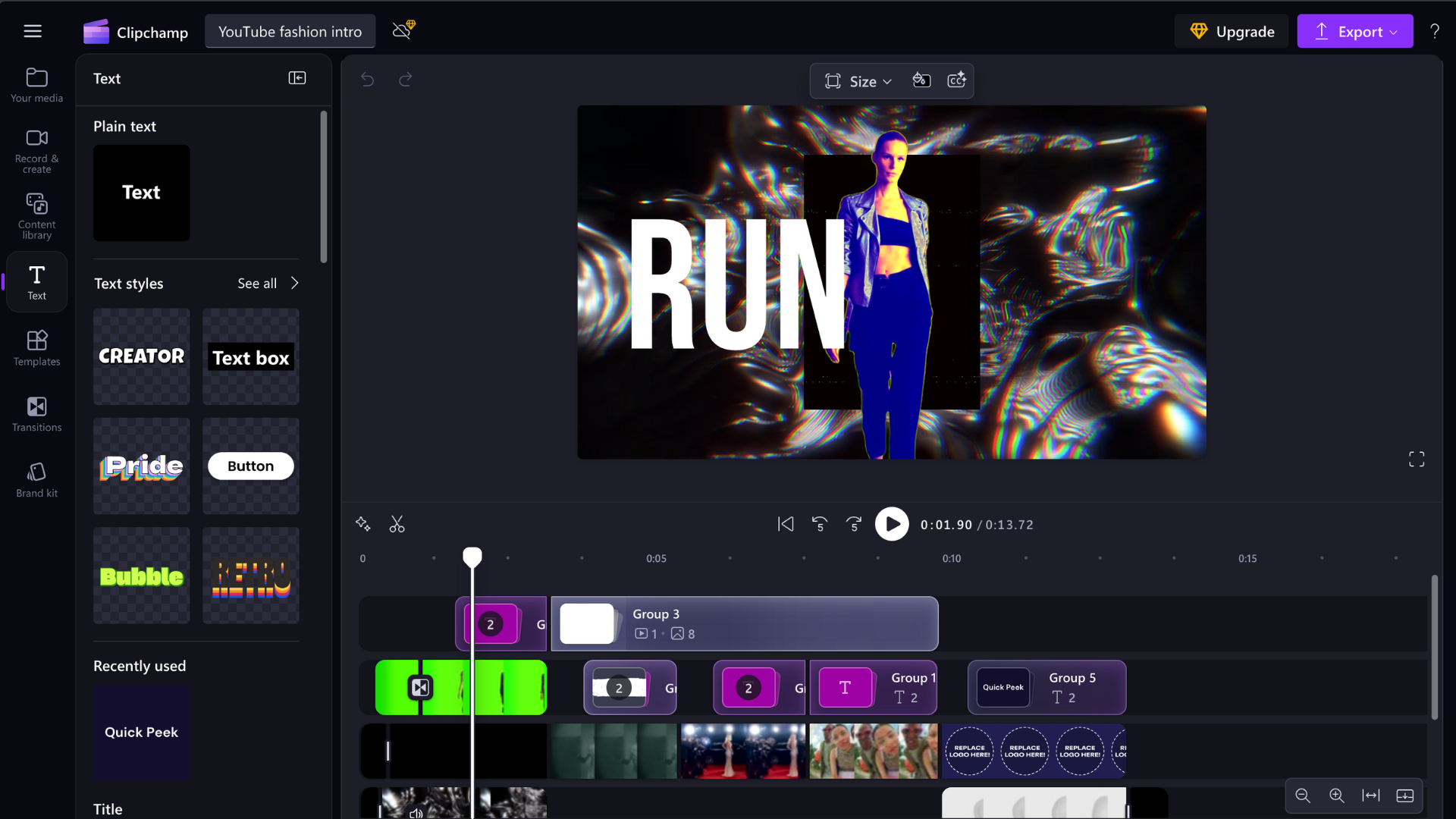
ClipChamp video editor
Best for: Beginners, mobile editing (iOS only)
Key features: Vast template and stock media library, multiple export options, AI-powered tools
Pricing: Free or $11.99/month for a Premium subscription (price based on monthly billing)
Editing features
Clipchamp is an easy-to-use video editing platform that’s similar to CapCut in many ways. The video editor—which is available as an in-browser app, desktop app (for Windows), or mobile app (for iOS devices)—has all the basic tools you need to start editing videos. It has a splitter, cutter, and trimmer, which you can use to edit text, videos, images, and audio in a multi-layered timeline editor. You can also crop, flip, and rotate your video tracks, as well as adjust their opacity and coloring. Additionally, this video editing software has a compressor and a converter if you need to change your videos’ sizes and formats. Your project can be resized to different dimensions for various video types, plus you can record voice (with a text-to-speech option), video, and your screen within the editor.
Clipchamp also boasts AI-powered editing tools, from AI subtitles to AI noise suppression.
Unlike other similar video editing apps, Clipchamp can’t be used without an account. It also has limited collaborative features—the option to share ongoing projects with others depends on the version of Clipchamp being used.
Templates and media library
Clipchamp offers a wide range of templates for different video editing needs, such as TikTok videos, Instagram Reels, Facebook video ads, gaming videos, and more. The platform also offers free stock videos, images, audio, and elements in their media library. With an $11.99 monthly subscription, you gain unlimited access to cloud storage and stock media. You can upload your own content, too.
Exporting
With this video editing tool, your video can be rendered to MP4 and GIF formats without watermarks. But, you can only export videos up to 1080p (full HD) for free. For higher resolutions, you have to subscribe to a paid plan. There’s no scheduled publishing option, but you can publish directly to several platforms, including YouTube, TikTok, Pinterest, and LinkedIn.
6. Veed

Veed video editor
Best for: Browser-based video editing
Key features: Collaborative tools, AI-powered video editing tools
Pricing: Free for account holders, $9/month for Lite users, $24 for Pro users, and custom pricing available for Enterprise (prices based on annual billing)
Editing features
Veed is a powerful online video editor packed with features. It offers basic video editing features such as splitting, trimming, cutting, and multi-layered timeline editing for text, audio, images, and videos. Users can crop, resize, rotate, and adjust the opacity and coloring of their video tracks to their preference.
Veed also has a subtitler, green screen feature, and a draw tool, which allows you to draw or doodle over your project. The platform also offers a variety of formats, be it for YouTube, Facebook, TikTok, etc.
If you want to work with others on a project, Veed offers collaborative features such as time-stamped commenting and a Brand Kit for sharing brand assets across projects.
Veed is available online via web browser or iOS app.
Templates and media library
While VEED doesn’t offer a ton of templates, it does have a stock library with lots of footage, music, sound effects, text presets, stickers, and more.
Premium features and exporting
Free plan users can export their videos to 720p only. Lite plan users can export up to 1080p, and Pro and Enterprise plan users can export up to 4K.
Like some of the previous video editing software on this list, users can’t schedule their publishing in advance. Direct uploading to Facebook, LinkedIn, and X is available.
7. FlexClip

FlexClip video editor
Best for: Basic, no-frills video editing
Key features: Templates, stock library
Pricing: Free for account holders (with file resolution, video length, and project quantity limits), $11.99/month for Plus users, and $19.99/month for Business users (prices based on annual billing)
Editing features
FlexClip is a free online video editing platform that can be used without an account. Like the previous video editors, it has a splitter, cutter, and trimmer. Its timeline editor only has one layer for video editing and one for audio. You can also change your video tracks' color, speed, and rotation.
FlexClip's video editor also has a video compressor and converter, with plenty of project sizes to choose from depending on your video needs. You can record your voice, video, and capture your screen using the in-app recording feature, too.
Like many video editing tools on this list, FlexClip offers a suite of AI-powered tools, such as an AI Text to Image generator, AI Text to Speech, Auto Subtitles, AI Translator,AI Voice Generator and more. For creating short-form content, you might also consider an AI reel maker(opens in a new tab or window). FlexClip also allows collaborations. Just sign up and create a team workspace to get started.
Unfortunately, this online video editor is only available for Windows, Mac, and Linux users. There is no mobile version at the moment.
Templates and media library
FlexClip offers free templates for different kinds of videos like YouTube intros and outros, birthday videos, and even memes. It also has a large library of stock videos, images, audio, and elements that are free to use. If you have your own media you'd like to use, you can simply upload it to the video editing software. Animations, transitions, and overlays are also available to level up your project.
Exporting
Free users can export up to 720p. Videos can only be as long as 10 minutes and users can only create a maximum of 12 projects. On top of this, free videos always come with a watermark. Plus plan users can export up to 1080p with no watermarks, no video length cap, and no project quantity limit. For Business plan users, FlexClip offers everything Plus plan users get, plus up to 4K ultra HD downloads and more cloud and video hosting space.
8. Adobe Express Video Editor

Adobe Express video editor
Best for: Users familiar with the Adobe suite
Key features: Generative AI tools, Content Scheduler
Pricing: Free, $9.99/month for Premium users, $4.99/month per person for Teams users (for the first year)
Editing features
For those who are familiar with the Adobe suite and want a simple, easy-to-use online video editing tool, Adobe Express is another option worth considering. Users can cut, crop, and trim footage, isolate and remove background noise, and access generative AI tools. You can select a pre-set video size or input a custom one, but resizing projects is limited to Premium users.
The Adobe Express editor has a split-screen feature you can use to lay two media side by side in a storyboard. You can also add a voiceover recorded directly from the editor. Using the collaborative feature, you can invite other people to edit your video. You can start video editing as a guest; however, you must sign up if you want to save your project.
Users can also use the built-in Adobe Express Content Scheduler to plan and publish videos to their preferred platforms in advance.
Adobe Express can be used via web browser or Android/iOS app.
Templates and media library
Users get access to about 5,000 video templates and 1M+ stock photos, videos, music tracks, etc.
Exporting
Free users can download their video projects as MP4 files. While users can export up to 4K resolution, changing video resolutions is a premium feature. Adobe Express is available for free, while a Premium subscription costs about $9.99/month, and a Teams subscription costs $4.99/month per person for the first year of your subscription.
What is a good alternative to CapCut?
Whether you’re an aspiring content creator looking to start your YouTube intro(opens in a new tab or window) or a filmmaker who wants to edit and upload shorts on the go, you can benefit from using video editing sites and apps that offer templates, stock footage, and other elements like audio, images, transitions, overlays, and animations. That way, there’s no need to start from zero every time you’ve got a new video in mind.
For those looking for a video editor like CapCut, all the platforms listed above offer similar tools and features. These CapCut alternatives work for PC, too. If you’re looking for a CapCut alternative for Android devices, try Canva, WeVideo, and Adobe Express. All of these options are also available on iOS, along with Clipchamp and Veed.
Who owns CapCut?
CapCut is owned and operated by ByteDance Ltd., the technology company best known for developing TikTok. The video editing app lets users adjust their video aspect ratio for different social media platforms, provides various templates and video effect options, and integrates easily with TikTok—all for free. This has made CapCut a popular video editing tool for TikTok creators.
What is the best video editing software for more advanced editing?
While all the video editing tools in this article can be used by beginners, some editors have more features than others, which can be useful for more detailed and sophisticated editing work.
What you should look for are video editing software with splitting, cutting, and trimming features, as well as an exhaustive timeline editor. These allow you to edit your storyboards, audio, and text in detail. Make sure too that the editor has adjustment options such as resizing, flipping, cropping, and color grading available. If you’re working with a green screen, choose a video editor with a background remover or built-in chroma keying.
If you’re looking for an online video editor or app that works on your phone, your best bets are Canva, Kapwing, and Veed. WeVideo is also an excellent choice, but note that some of its advanced features require a paid subscription.
If, on the other hand, you want a video editor you can use offline, use multiple tracks on your timeline, or need something that can handle more complex work, you might want to explore professional video editing software like Final Cut Pro, DaVinci Resolve, or Adobe Premiere Pro. Bear in mind, however, that these software often come at a steep price and have minimum system requirements to function optimally.
Start video editing today with Canva. Choose a free template or create your own.

Written by
Gabrielle Kyla Isaac