Circle crop for a more creative photo framing
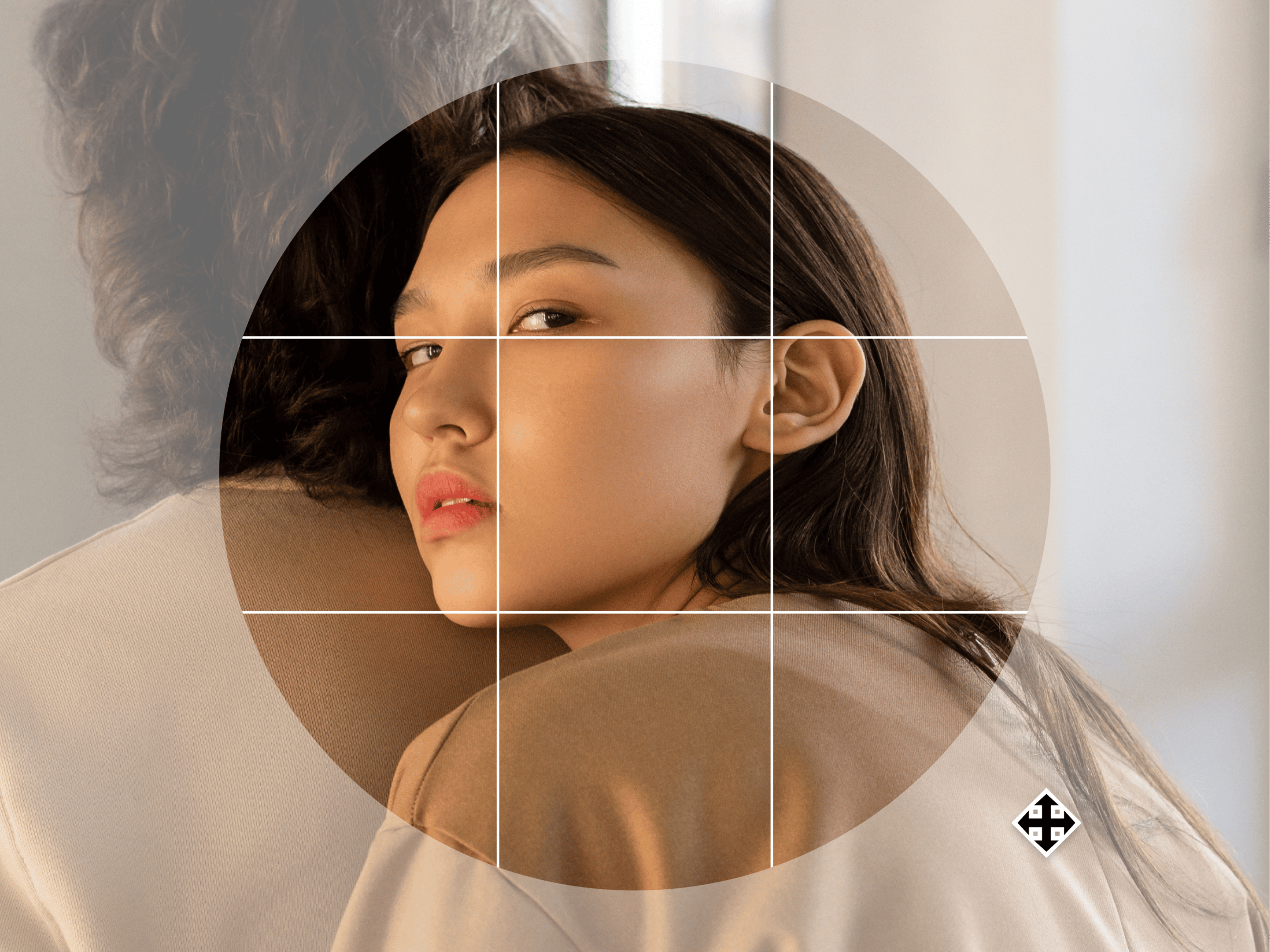
Easily circle crop a picture for a defined focus. Round out the edges and create a perfectly shaped frame that you can use for your portraits or photos on social media.
Frame photos creatively
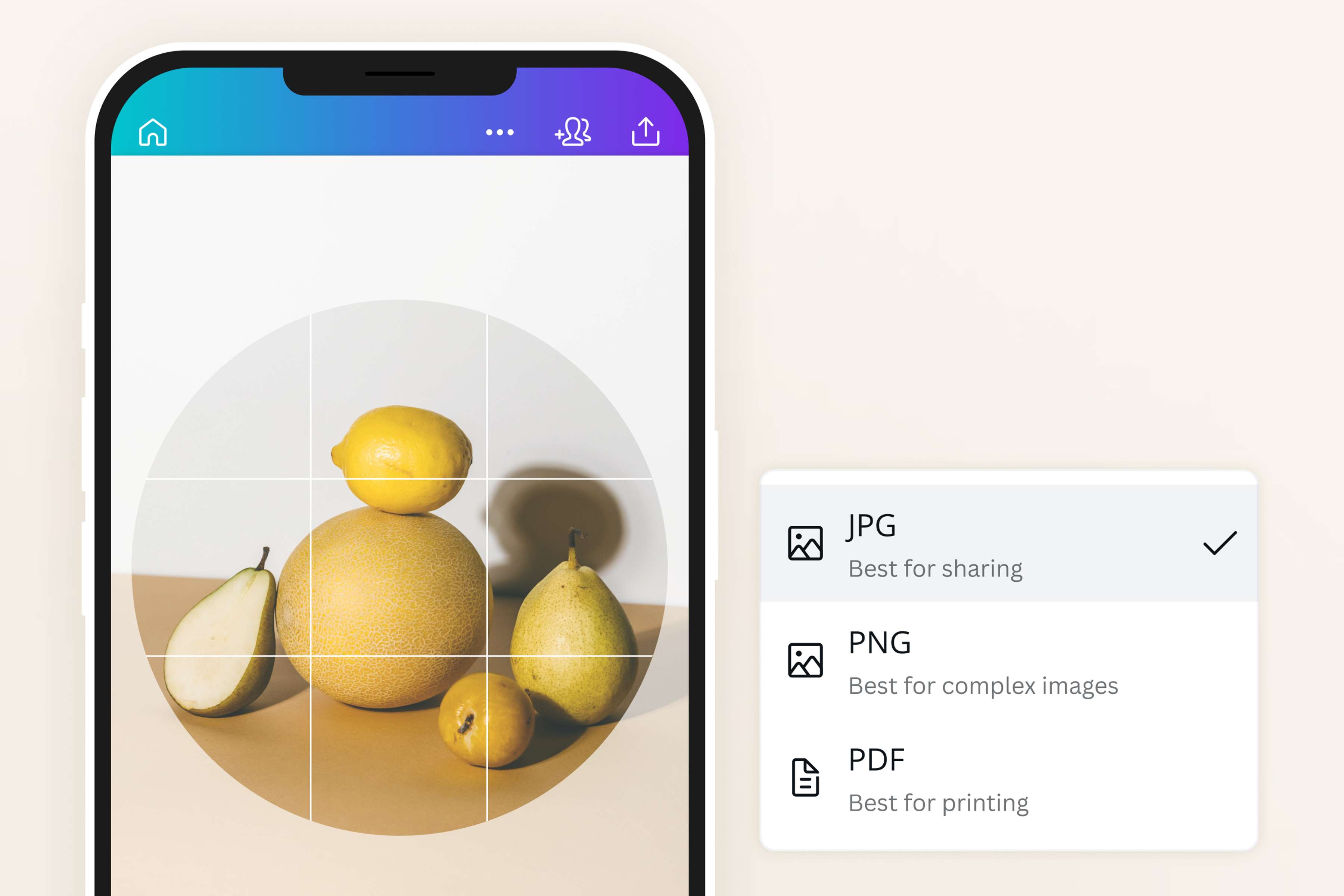
Ditch the typical square or rectangular photos and get creative. Circle crop a picture to frame the subject well, whether it's you, a friend, or a product, Easily download your cropped photo for free in different file formats—JPEG, PNG, or PDF. Use poster mockups to visualise your design. This is a great way to edit and add style to photos for social media, resumes, posters, or even use in creating business card mockups.
Circle crop perfectly and easily
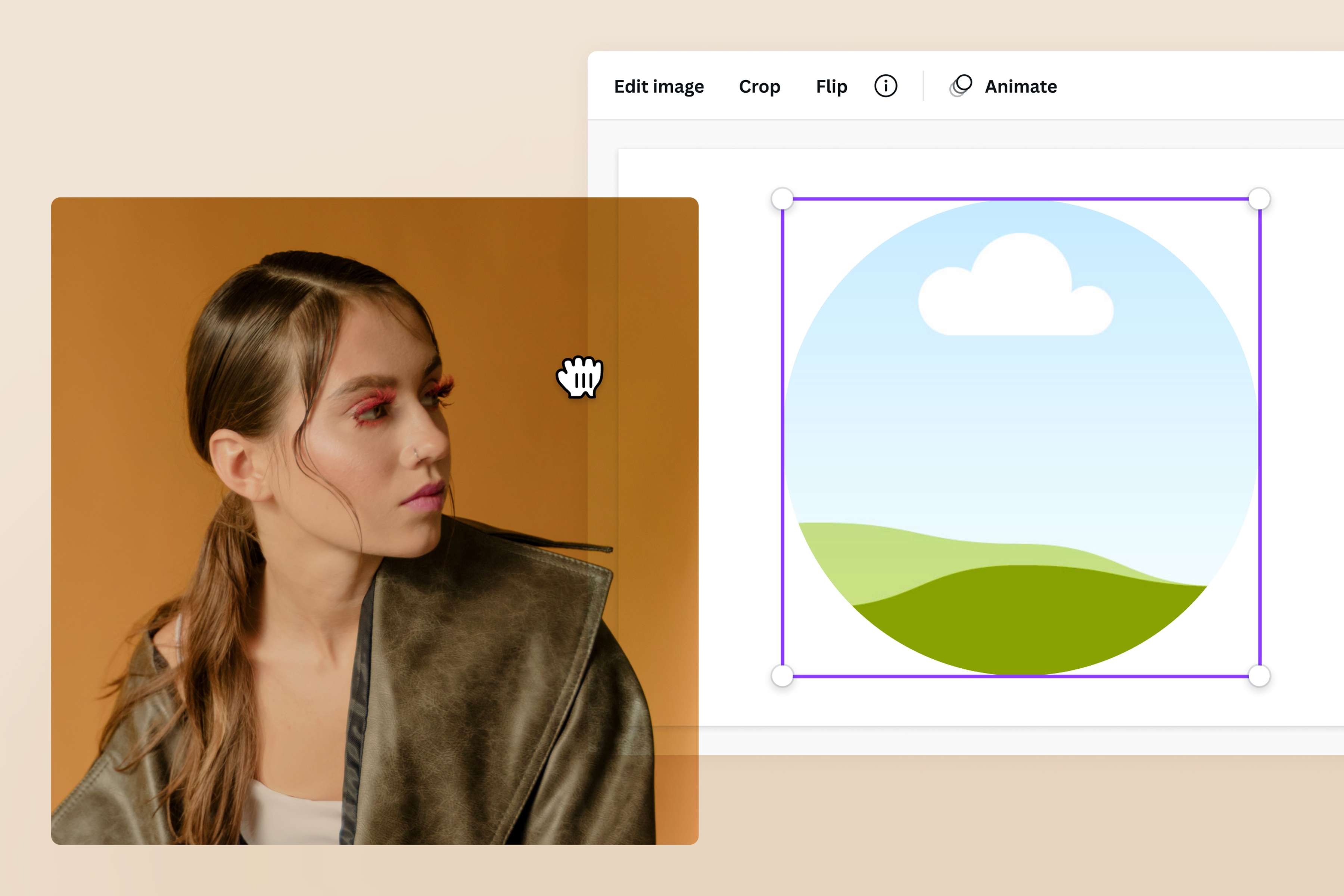
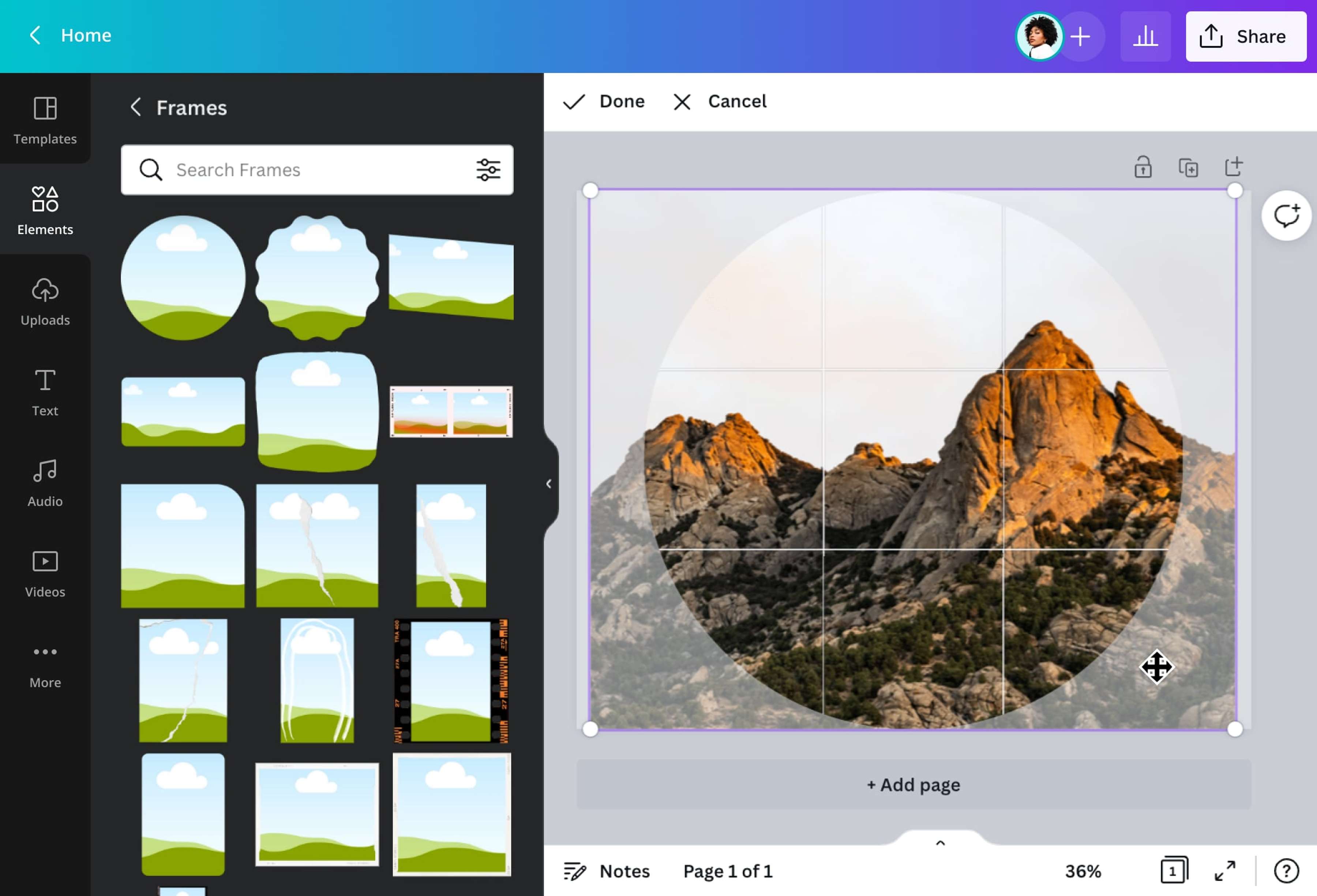
Crop photos into a circle without the fuss using frames. To get a perfect rounded-out frame automatically, go to the editor side panel and select the Elements tab. Then scroll through the available elements to view the Frames panel. Click on a round frame to add this to your design and drag your photo inside the circular frame. It will automatically crop your image to match the frame’s shape. Scale and zoom your photo to find the perfect angle.
Bring your photo to life
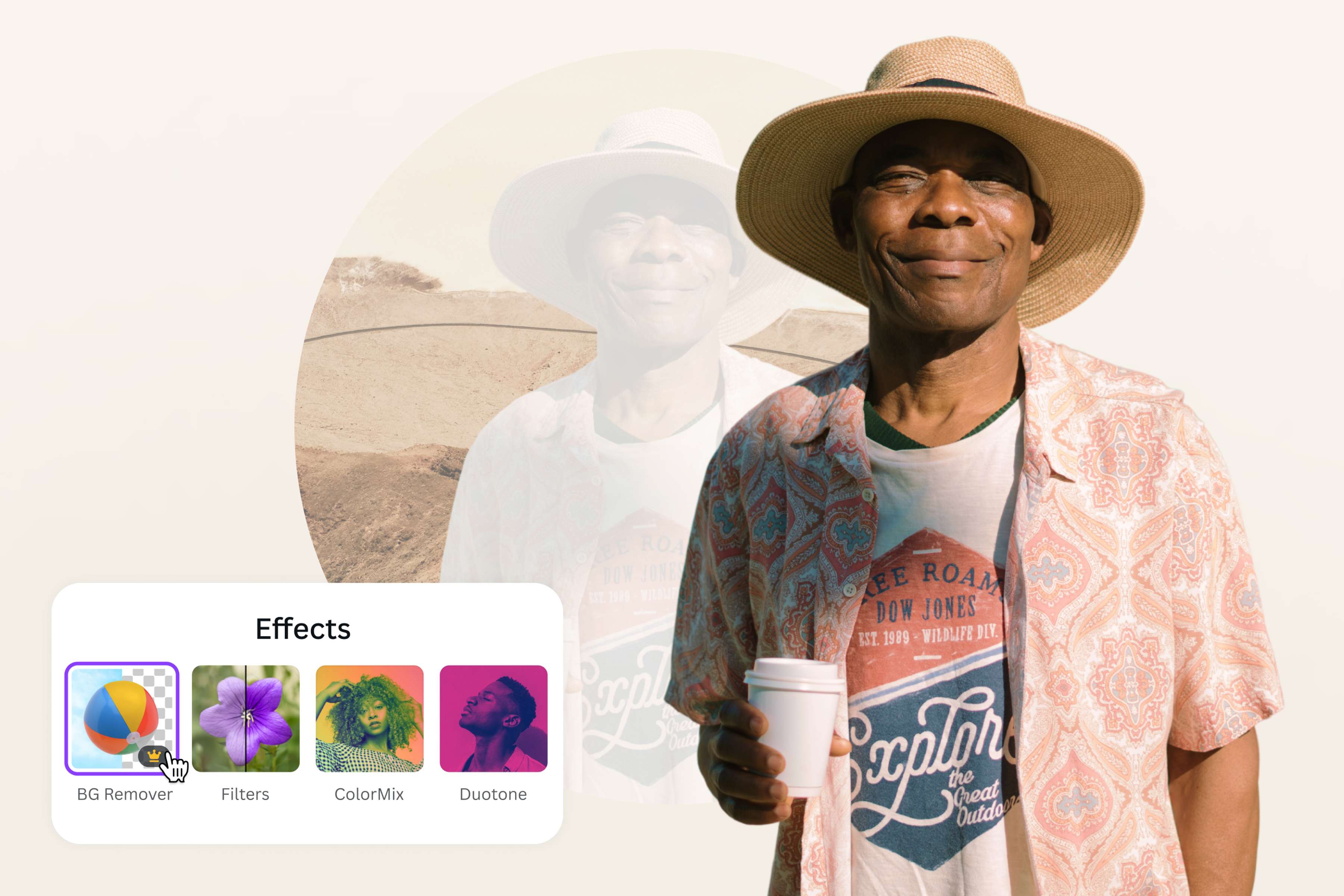
With our circle crop tool, there’s so much you can do aside from instantly cropping an image into a perfect circle. Our free photo editor lets you tweak your cropped image and add flair with photo effects. Remove the background to make the portrait stand out or autofocus to blur the background or foreground.
How to crop a picture into a circle
Open Canva
Launch Canva, click Upload on the upper right corner of the header banner. Drag and drop the photo/s you want to crop. Alternatively, open a blank template or a ready-made template and click Upload on the side panel to upload your photos.Circle crop your photo using frames
On the left side panel, click Elements and type “Frames” on the search bar and look for a circular shape. Click your chosen circle frame to apply it to your page. Then, drag and drop your photo into the frame to crop.Edit the cropped image
Double-click the frame to match your preferred photo size. Then double-click the photo and drag the photo inside the frame to adjust the image’s position within the frame. Your subject can either fill in the frame or you can make it look smaller. After, you can edit the photo by adding photo effects(opens in a new tab or window), filters, using autofocus, or tweaking the photo’s brightness(opens in a new tab or window), saturation, and contrast.Customize the photo
Have fun with your design! Take it to the next level by playing with stickers, illustrations, and other elements. Browse through our diverse library to find free and premium design elements that you can add to your cropped circle photo.Share or download
Once you’ve finalized your cropped photo, download it as a high-quality JPEG or PNG(opens in a new tab or window) file on your computer. Share it directly to your social media platforms from the Canva dashboard.
Frequently asked questions
- A circle crop tool is an online editing and cropping tool that is used to crop images into circles. Cropping is faster and quicker when you have a tool that automatically rounds the edges for you.