- Captions
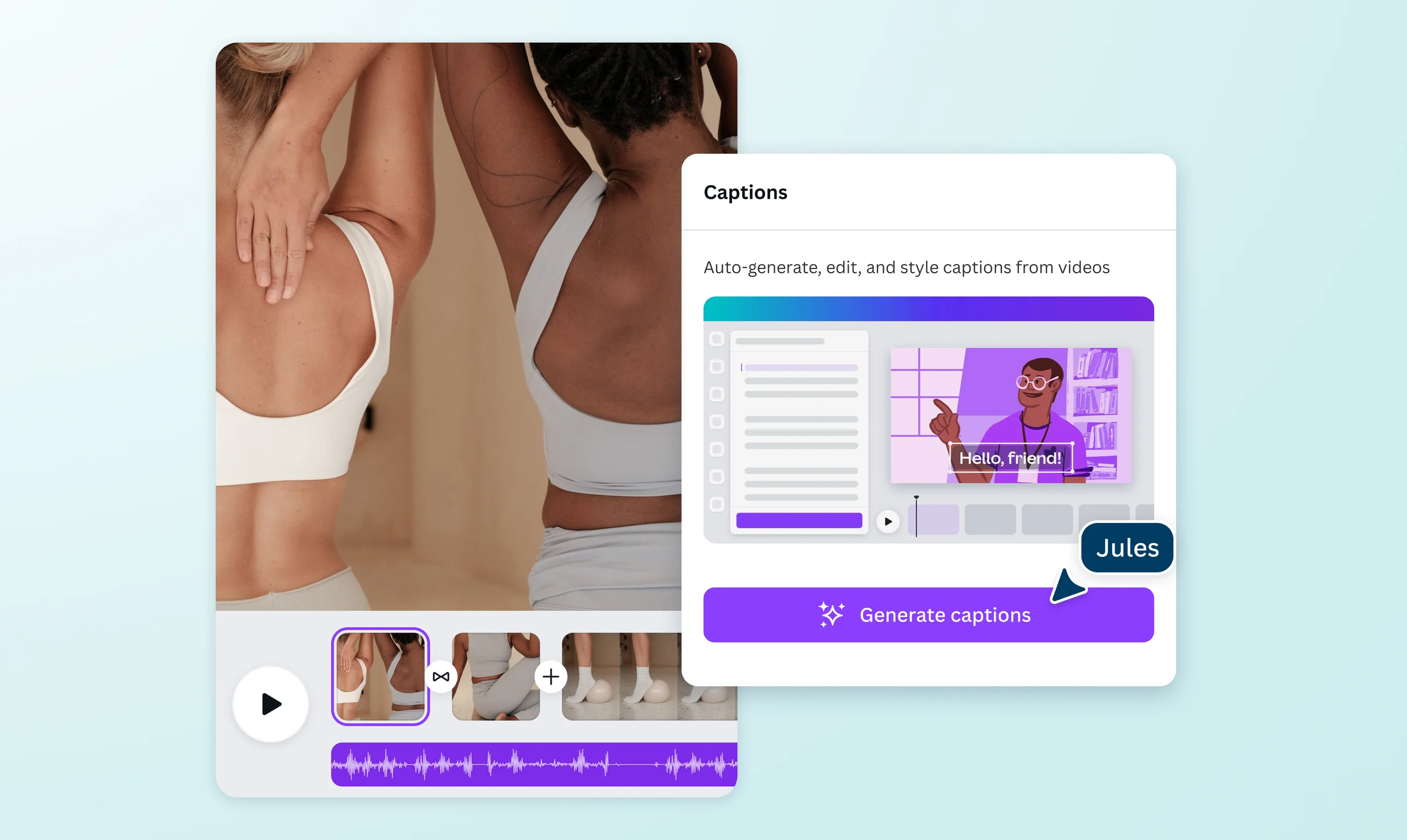

Add subtitles to video to get your message across
Subtitle a video to let your audience access and understand your ideas better. Whether you’re a content creator, video storyteller, or growing brand, you can tell your story loud and clear by generating video captions on Canva for free.
or drop it here
Learn about Canva's upload formats and requirements. See how we use your content in our Privacy Policy.
Automatic captions in one click
Automatically generate video captions to drive engagement and make your content accessible and stream-ready. With the Captions tool on Canva, you can instantly produce, edit, and export videos with seamless subtitles—no prior design skills needed. The best part? You get to generate captions in one click for free, for as many videos as you want.
Seamless engagement for every viewer

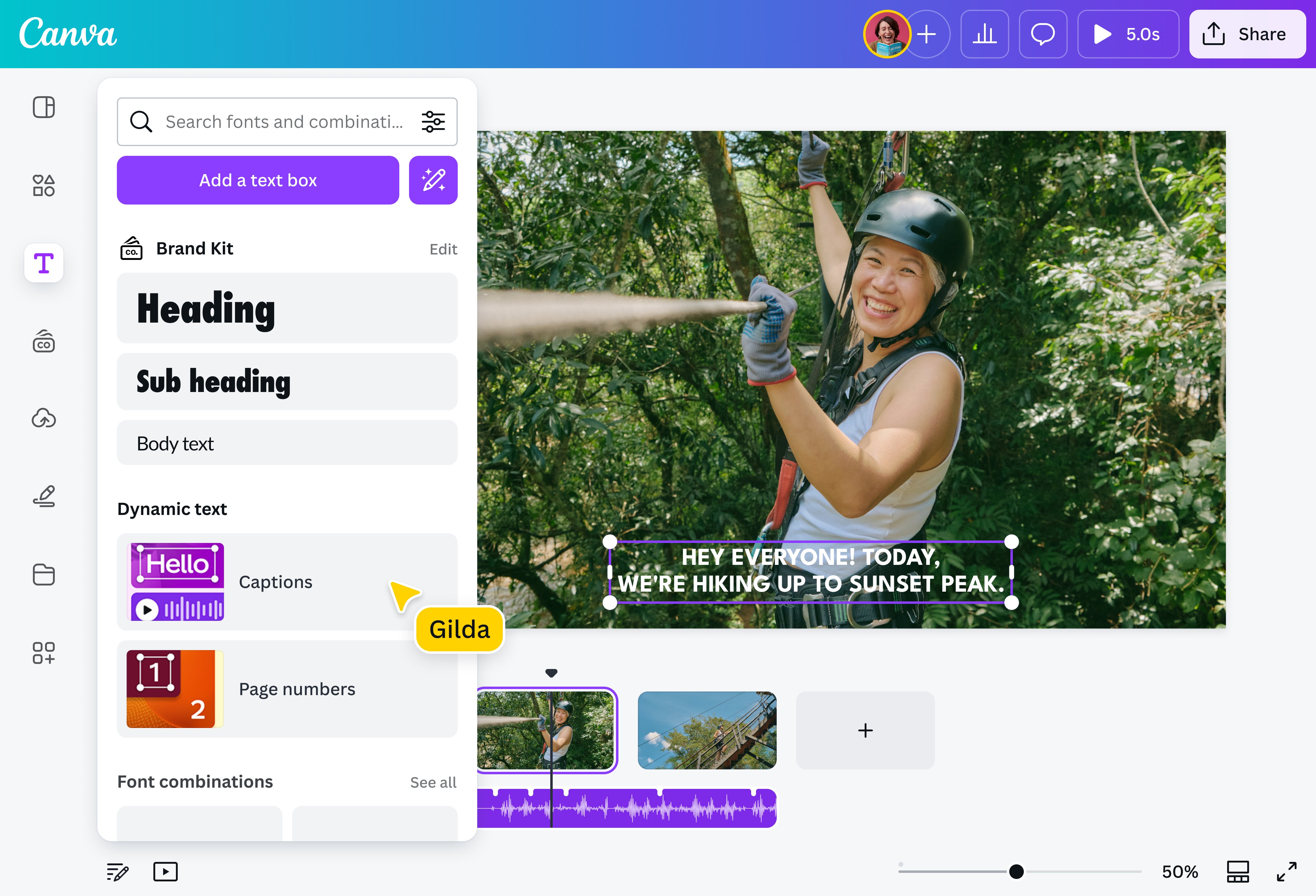
Add subtitles to your video online and let your audience enjoy your content equally, no matter how they consume your video. More than just words on the screen, video captions help viewers stay engaged and follow the narrative—even without sound. Take it to the next level with caption animations and glow effects that makes every word pop as it’s spoken. Simply edit, animate, and choose the style that perfectly matches your brand. With Canva’s video subtitler tool, it’s easy to craft inclusive video subtitles that enrich your content for a wider audience.
Bring key messages into focus

Dealing with complex or technical topics? Adding subtitles to your video lets viewers read along with or without audio, ensuring your key message shines through. Keep things on-brand by using the brand font from your Brand Kit (Pro)(opens in a new tab or window) and then positioning your captions nicely in your video layout. With the Captions tool, you can add a personal touch while keeping your message clear and consistent.
Elevate your video content

Go beyond simply putting subtitles for videos. Canva has many intuitive tools to enhance your visual content. Adjust the size, align the text, and use colors to highlight words and phrases in your subtitle. Find icons(opens in a new tab or window) and stickers(opens in a new tab or window) that match your style, then blend them naturally into your video. From vlogs and tutorials to product demos, caption your videos for a better viewing experience.
How to add subtitles to a video

Frequently asked questions
- You can put subtitles on a video using our video subtitle generator. It’s completely free, and you can generate captions as many times as you want! Plus, using our tool gives you captions that are editable, stylable, and exportable directly from our platform. Want to add a personal touch? Upgrade to Pro to apply your brand font with just one click.
- Absolutely! Our Captions tool automatically generates captions for your videos and lets you edit and choose a style that matches your brand. You can also export your captions directly from our platform.
- Closed captioning for videos means displaying a transcription of the audio content on the screen so that viewers can understand the video even without sound. Adding captions to videos lets your audience access the dialogue, sounds, and other audio elements through written text. Closed captions can be turned on or off and are generally meant for non-native speakers and individuals who are hard of hearing.
- Keep your subtitles informative and concise. Use punctuation to denote pauses and emotions. Break longer sentences into digestible chunks to avoid overwhelming the viewer. Stay true to the video's original tone and message while adapting slang and idioms where applicable to suit your target audience. Lastly, use clear and simple fonts to ensure your captions are readable across devices.

@mahimagirdhar