- Create Presentation Background
Presentation Background Maker
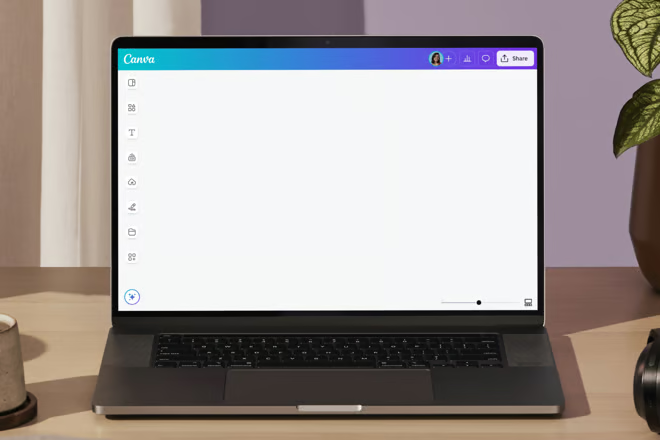

Easy drag-and-drop editor
3M+ free stock photos and graphics
Design from any device
Invite others and design together
Set the stage for a memorable presentation(opens in a new tab or window) with the perfect, custom background. Instantly create a background for any kind of slideshow with Canva’s easy-to-use presentation background maker.

Make a presentation background that speaks volumes
Next time you make a presentation, stay away from cliché backgrounds and create one yourself on Canva. With custom slide backgrounds, you’ll set the right tone, nail your branding, and guarantee a standout slide presentation.
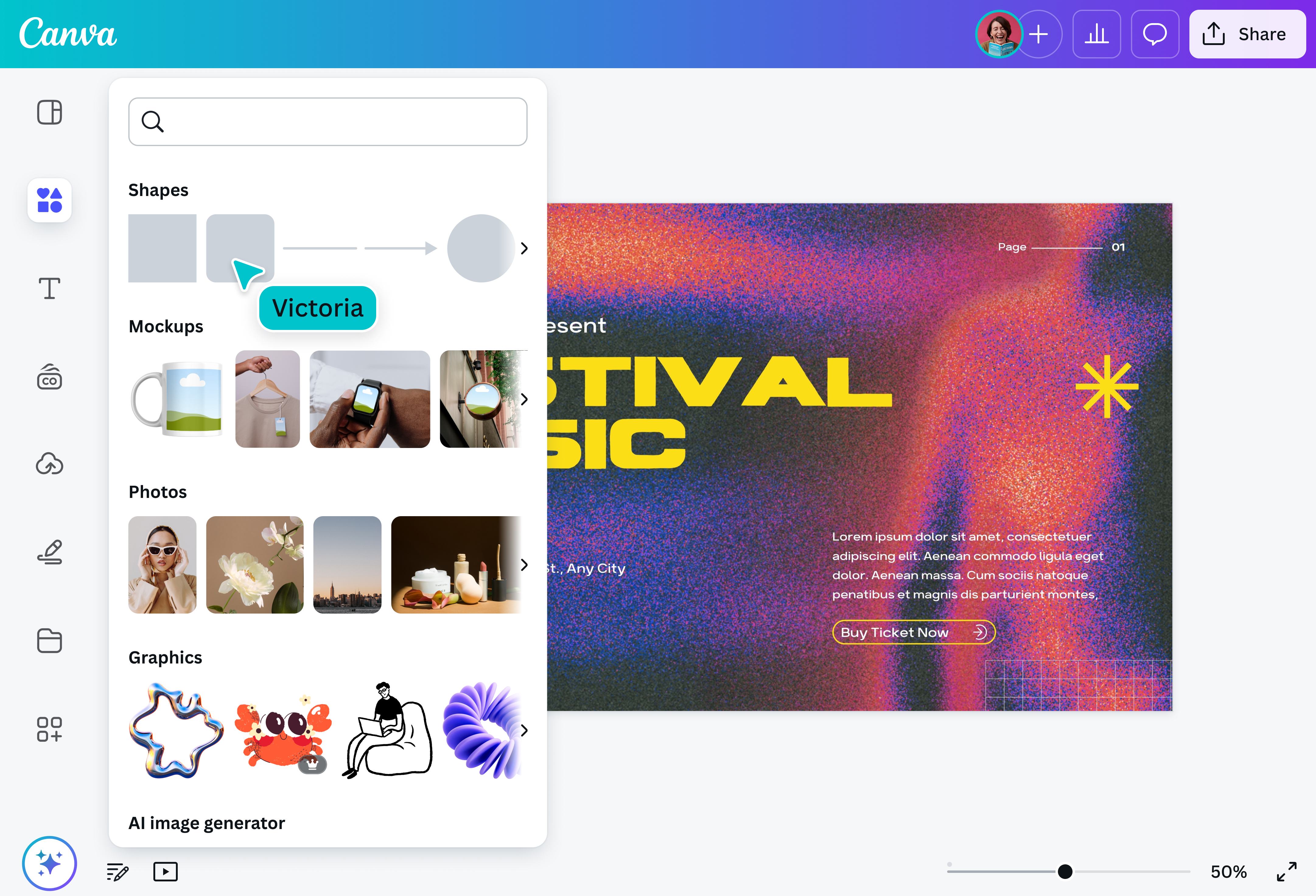
Our presentation background maker gives you full control over the look of your PPT background. Explore millions of stock photos and graphics to build the imagery you’re going for. Structure the slides with section headers and footers in clean, crisp fonts and text effects. In a time crunch? Try Magic Design™ for Presentations and create instant presentations — not just backgrounds — in seconds.
Design a presentation background

Meet Magic Studio™: All the power of Canva’s AI
Magic Studio™ brings together the best AI-powered tools for you and your team to help you design with more ease, speed, and creativity.


Create a presentation as different as you
Bored of the usual blue swirls and grassy fields? Forego the overused visuals and make your own background for presentations. Upload your images or explore our free and premium photos and icons. Want a moving background? Captivate the crowd with motion graphics and animated elements.
Canva’s presentation templates are a strong starting point, and you have all the tools to customize them. Designing slides for young learners? Create a backdrop that resembles a classroom. Building training materials? Add headers or footers and apply a smart-looking font. Pitching to upper management? Save time with a Brand Kit(opens in a new tab or window). Easily access your company fonts, colors, logos, and imagery to keep every presentation on-brand and consistent.
Design slide backgrounds with magic
What if you can create presentations with backgrounds and content in seconds? Magic Design™ for Presentations is an AI-powered design generator that creates custom, on-brand slides instantly. It’s your ultimate sidekick to speed up slideshow-making.
Just type your idea in a few words and watch as slides fill up with your topic, outline, and content. With your first draft in the bag, you have more time to polish details and extra hours to practice in front of the mirror.
Collaborate seamlessly with others
Invite your classmates or coworkers to work on the slide background — and the slides — together. Share your presentation background design and let teammates revise and edit. Tag people in comments, communicate within designs, and add emoji reactions. They can access the PPT background design on mobile, so they can jump from device to desktop and work on the slides when inspiration strikes.
Finish your presentation on Canva
Once you’ve created a background, finish your presentation on Canva — if you haven’t used Magic Design already. To make more slides, simply duplicate your presentation background and fill it with content. As you write, you can ask Magic Write™(opens in a new tab or window), your AI writing assistant, to help you find the right words or use the sentence rewriter(opens in a new tab or window) to polish your text. Add polls(opens in a new tab or window) and quizzes(opens in a new tab or window) to make your slides interactive and report your data using beautiful charts and tables(opens in a new tab or window). If you’re running a workshop, you can expand a slide to a whiteboard(opens in a new tab or window), an unlimited digital space where you can bring your team’s best ideas together. When time comes to present, use Canva Live(opens in a new tab or window), where you can engage with your audience through live questions, comments, and emoji reactions.
From designing the background to creating the content to presenting the slides, Canva has everything you need for a truly spectacular presentation.
FAQ
- Open your presentation design.
- Select the slide with the background you want to change.
- Upload your desired background and place it on the slide.
- On the floating toolbar, select Positions > Layers. Right-click the background image, and select Set image as background.
- Select Share on the top menu.
- Click Download.
- Choose your preferred file type (PDF, PNG, or MP4 for video backgrounds).
- Adjust any settings if needed, then click Download again.
- Avoids clutter and doesn’t compete with the content for attention
- Provides the right amount of contrast to keep the text readable
- Supports the tone and message of the presentation
- Follows company branding
To use Magic Design while working on your presentation, select Design from the left side panel. Enter a prompt (around five words) that describes your envisioned presentation. Then, Magic Design will generate a presentation with an outline and content on each slide. Just polish the content, insert important details, and add final touches to the design. It’s easy visual storytelling that saves you time and kick-starts your next big idea.

@navneet4


