- Create Scrapbooks
Design beautiful scrapbooks online using Canva’s scrapbook maker
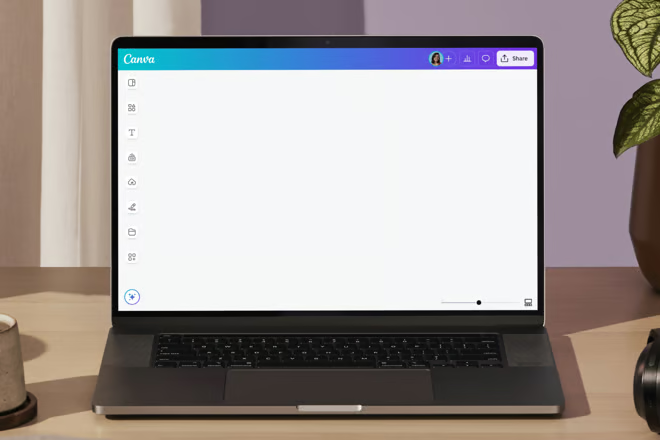
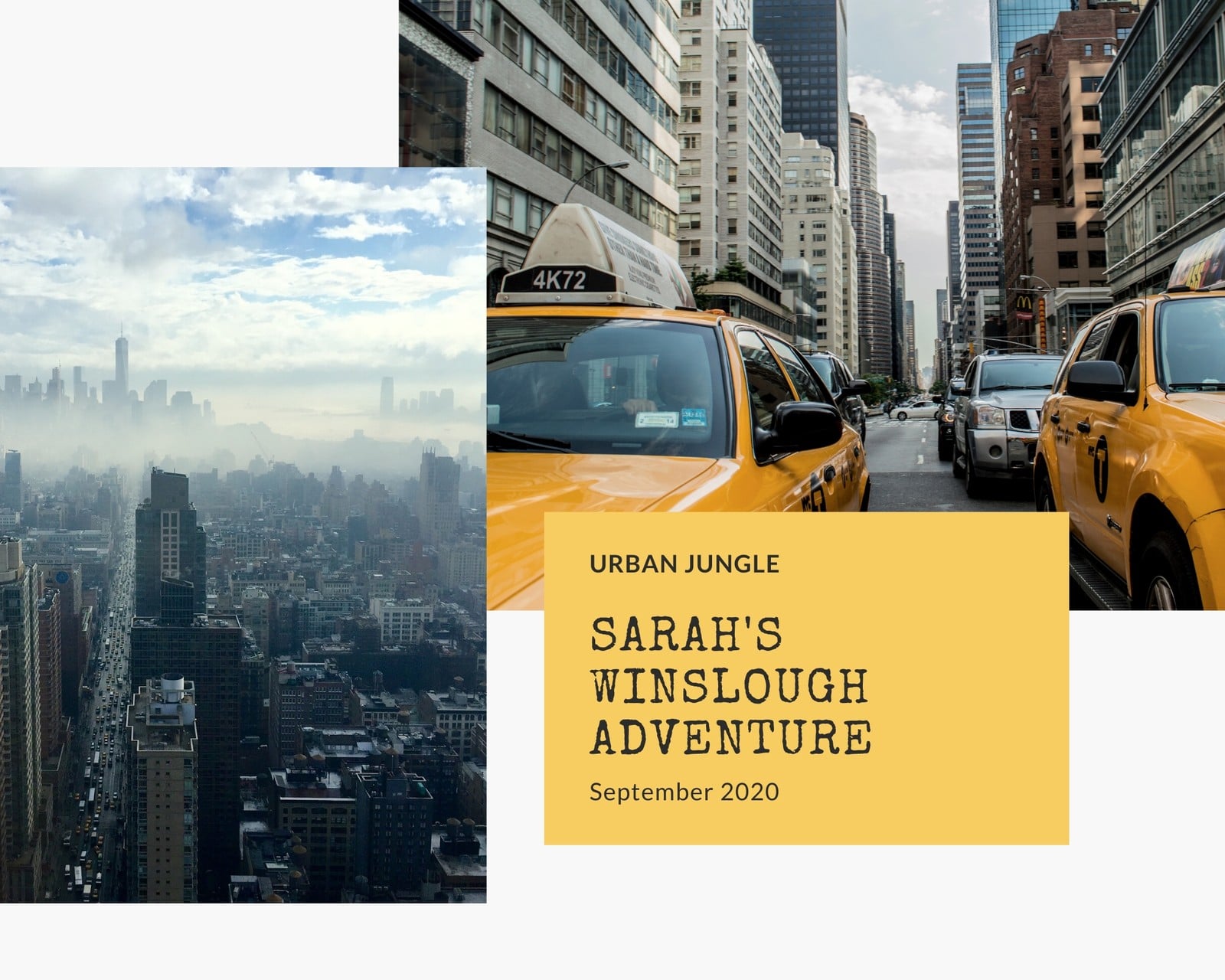
Easy drag-and-drop editor
3M+ free stock photos and graphics
Generate content and media with AI
Invite others and design together
Hang on to precious memories with a beautiful DIY scrapbook from Canva.

Piece memories and moments together in a personalized scrapbook
Wondering what to do about your boxes of photos or gigabytes of images just lying around? Why not turn them into a beautiful work of art brimming with memories? If the thought of tackling such a monumental task is making you feel anxious, never fear, give Canva most of the heavy lifting and see how fun and easy it can be.
The secret lies with the collection of professionally-made templates made by our amazing team of designers. From there, it’s a simple matter of changing up the elements and photos along with a few extra personal touches to the design. Share your scrapbook with the rest of your family and friends, translate(opens in a new tab or window), and even invite them to collaborate with you.
How to make a scrapbook

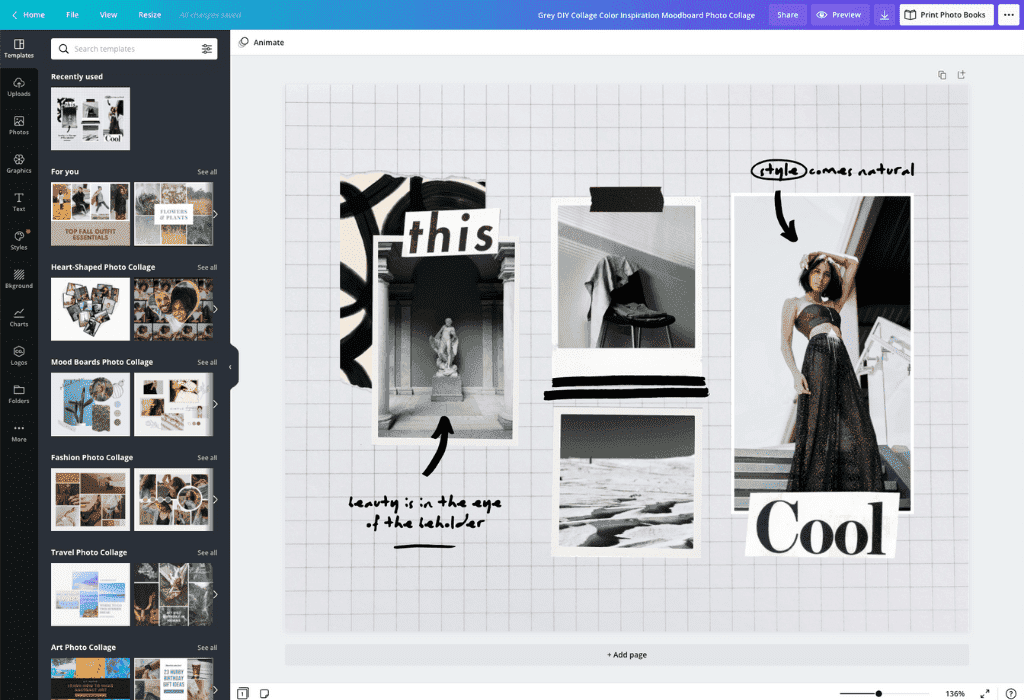
Meet Magic Studio™: All the power of Canva’s AI
Magic Studio™ brings together the best AI-powered tools for you and your team to help you design with more ease, speed, and creativity.


Upload your own photos and spice them up with more design elements
Once you’ve got a template to start with, you can begin personalizing your design. Upload your own photos or images by going to the Uploads tab and dragging and dropping files from your computer and into Canva. Once the images are saved on your uploads folder, they will remain there, ready to be used for your next designs.
At the same time, you can add icons, illustrations and even more photos by browsing through Canva’s amazing media library. You can now freely draw(opens in a new tab or window) some doodles or cute characters!Drag and drop new design elements into your workspace, move them to where they need to be, and resize by dragging on any of the image edges.
Add filters and effects to your images
One of the easiest ways to create a theme or cohesive look for your scrapbook is to apply filters to your photos. Want to add a vintage feel to your design? Or how about a black and white(opens in a new tab or window) themed scrapbook? Take advantage of Canva’s extensive photo editing(opens in a new tab or window) features. Just click on your image and apply any of the pre-set filters or add photo effects like vignette(opens in a new tab or window), blur(opens in a new tab or window) and x-process. You can even experiment with more settings like adjusting contrast, brightness(opens in a new tab or window), blur background(opens in a new tab or window), and tint. Add nostalgic charm to your photos with a vintage filter(opens in a new tab or window).
Collaborate with family and friends on your design
Many hands make light work — and add to the fun! Get help from friends and family on your latest scrapbook project by sharing editing access with them. Just click on the share button, tick the box allowing them to edit your work, then send the generated link. Since Canva is stored on the cloud, you and your collaborators can access your design anytime, from anywhere, on any desktop, laptop, iPhone, iPad or Android device.
FAQ
It’s up to you to decide what to put in your scrapbook, but the possibilities are endless. You can include photos and images, magazine clippings, maps, fabric, items from nature, patterned paper, embellishments like ribbon and lace, stamps and stencils, stickers and more.
You can print a digital scrapbook in a few easy steps. Once you've finished your digital scrapbook layouts, they can be printed as individual pages and then bound together into a scrapbook album. It's also possible to print your scrapbook layouts onto bags, greetings cards or shirts, or create paper mockups to preview how they'll look.
First you’ll need to decide what style of scrapbook album you want: post-bound, three-ring, strap-hinge, book-bound or other. Then you can decide on your scrapbook size, going for 12 x 12 inches, 8.5 x 11 inches, 8 x 6 inches or a mini theme.

@navneet4


